

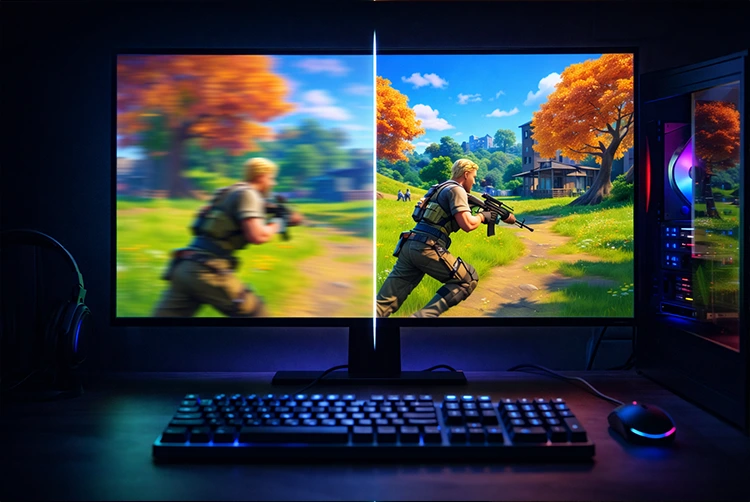
Struggling with choppy gameplay, rubber-banding, or drops below 60 FPS in Fortnite? If you’re on a low-end PC think integrated graphics, 8-16GB RAM, or an older CPU Fortnite lag fix for low-end PC on Performance Mode starts with switching rendering modes and tweaking a few key areas. Epic’s Performance Mode strips away fancy visuals for raw frame rates, often doubling FPS on potato rigs. In 2026’s Chapter 7, with busier maps and effects, these steps can stabilize 60-120 FPS at 1080p or lower. We’ll cover in-game tweaks, driver settings, and system cleans no hardware upgrades needed.
Follow this guide sequentially for the biggest gains. First, monitor your FPS with our FPS counter tutorial to benchmark before/after.
Why Does Fortnite Lag on Low-End PCs?
Fortnite’s Unreal Engine demands CPU/GPU sync, but low-spec systems choke on shadows, particles, and high view distances. Common culprits:
- Rendering Overhead: DX12/Full mode overloads weak GPUs.
- Background Processes: Discord, browsers eating RAM/CPU.
- Outdated Drivers: Missing optimizations for Chapter 7.
- Stutter Sources: Shader cache buildup, Windows overlays.
Performance Mode fixes most by using dynamic resolution and simplified models ideal for rigs under RTX 3060/i5 levels.
Step 1: Enable Performance Mode in Fortnite
This is your #1 Fortnite lag fix. It auto-optimizes for speed.
- Launch Fortnite via Epic Games Launcher.
- Go to Settings > Video.
- Set Rendering Mode to Performance (DirectX 12)—restart required.
- Window Mode: Fullscreen.
- Resolution: Match your monitor (start at 1920×1080; drop to 1280×720 if needed).
Expect 40-80% FPS uplift instantly.
Best Fortnite Performance Mode Settings for Low-End PCs
Dial these in for buttery 60+ FPS. Tested on i3/Ryzen 3 + GTX 1050 equivalents.
| Setting | Recommended | Why? |
|---|---|---|
| Frame Rate Limit | Unlimited or 120 | Matches monitor; prevents tearing. |
| V Sync | Off | Reduces input lag. |
| View Distance | Near | Cuts draw calls. |
| Shadows | Off | Massive FPS saver. |
| Anti-Aliasing & Super Resolution | Low | Minimal blur impact. |
| Textures | Low | RAM-friendly. |
| Effects | Low | Fewer particles. |
| Post Processing | Low | No bloom/motion blur. |
| NVIDIA DLSS/AMD FSR | Performance (if available) | Upscales smartly. |
GPU Tweaks: NVIDIA and AMD Control Panel
Hardware-specific magic. For NVIDIA:
Follow our best NVIDIA Control Panel settings for low-end gaming:
- Low Latency Mode: Ultra.
- Power Management: Prefer Maximum Performance.
- Texture Filtering: Performance.
- Update to latest Game Ready drivers via GeForce Experience.
AMD: Radeon Software > Gaming > Fortnite > Profile > Anti-Lag On, Chill Off.
Clear shader cache: %localappdata%\NVIDIA\DXCache—delete all, relaunch.
Windows and System Optimizations
Free FPS from your OS:
Close Background Apps and Free RAM
- Task Manager (Ctrl+Shift+Esc) > End Chrome, Discord overlays.
- If under 16GB, upgrade how much RAM for 2026 gaming.
Power Plan and Game Mode
- Search “Power Options” > High Performance.
- Settings > Gaming > Game Mode: On; Xbox Game Bar: Off.
Verify Game Files
Epic Launcher > Library > Fortnite > Three dots > Manage > Verify. Fixes corrupted shaders.
Disable Fullscreen Optimizations
Right-click Fortnite.exe (in Epic Games\FortniteGame\Binaries\Win64) > Properties > Compatibility > Disable fullscreen optimizations + Run as admin.
Hardware Check: Does Your PC Meet Minimums?
Fortnite minimum: i3-3225, GTX 660, 8GB RAM. Recommended: i5, GTX 970, 16GB.
Build check? Use our gaming PC building tips. Overheating? Clean dust, cap FPS to reduce load.
Similar Unreal Engine woes? See Tekken 8 low FPS fixes.
Advanced Stutter Fixes for Stubborn Lag
- Clear Temp Files: Disk Cleanup > Temporary files.
- BIOS: Enable XMP for RAM .
- Network: Ethernet over WiFi; test ping in-game.
- Reinstall Epic Launcher: Nukes bloat.
Benchmark: Aim for <1% lows above 45 FPS. If not, consider cloud like GeForce Now.
Stack these for 2-3x FPS users report 30→90 jumps. Dive deeper with full PC gaming optimization tips.
FAQs How to Fix Fortnite Lag
Does Performance Mode fix Fortnite lag?
Yes it’s designed for it, boosting FPS 50%+ by simplifying graphics.
What FPS should I target on low-end PC?
Stable 60 FPS minimum; 120 for smooth fights.
Why stutter after fixes?
Clear DX cache or verify files common post-patch issue.
NVIDIA or AMD better for Fortnite low-end?
Both work; NVIDIA Reflex edges latency. Update drivers first.
Is 8GB RAM enough?
Barely close apps or upgrade to 16GB for no stutters.
