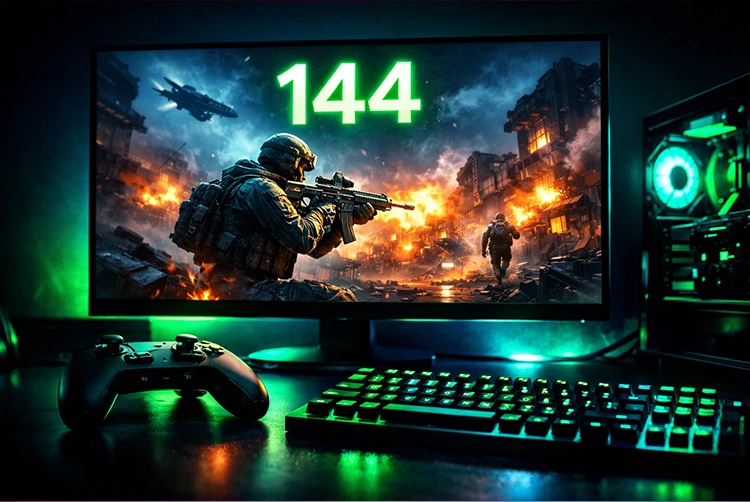
Knowing your FPS (frames per second) is one of the easiest ways to understand how well a game is running. Whether you’re troubleshooting stutter, testing new graphics settings, or optimizing a low-end system, an FPS counter gives you real-time performance feedback.
This guide explains how to turn on an FPS counter on PC, Steam, and consoles, using built-in tools and safe third-party options. It’s written for everyday players no technical overload and includes tips on when and why FPS tracking actually matters.
What Is an FPS Counter and Why It Matters
An FPS counter shows how many frames your system renders every second. Higher FPS usually means smoother gameplay, especially in fast-paced or competitive games.
FPS counters are useful when:
Tweaking graphics settings
Diagnosing performance drops
Testing new hardware or drivers
Optimizing low-end PCs for smoother gameplay
If you’re actively tuning performance, pairing FPS tracking with system-level tweaks like those covered in PC Gaming Optimization Tips How to Maximize Stability, FPS, and Gameplay smoothness can make a big difference.
How to Turn On an FPS Counter on PC (Windows)
1. NVIDIA GeForce Experience (NVIDIA GPUs)
If you’re using an NVIDIA GPU, GeForce Experience provides a built-in FPS overlay.
Steps:
Open GeForce Experience
Go to Settings → General
Turn on In-Game Overlay
Press Alt + Z
Select HUD Layout → Performance
Choose FPS
This method works well alongside driver-level tuning like adjusting NVIDIA Control Panel performance settings, especially on low-end PCs.
2. AMD Software: Adrenalin Edition (AMD GPUs)
For AMD users, the Adrenalin software includes an FPS overlay.
Steps:
Open AMD Software
Go to Performance
Enable Metrics Overlay
Use the default hotkey (Ctrl + Shift + O)
This is a lightweight option and doesn’t noticeably impact performance.
3. Xbox Game Bar (Windows Built-In)
Windows includes an FPS counter via Xbox Game Bar.
Steps:
Press Win + G
Open Performance
Pin the FPS widget
Grant permission and restart your PC if prompted
This is a good option if you don’t want additional software installed.
How to Turn On an FPS Counter in Steam Games
Steam has one of the easiest built-in FPS counters.
Steps:
Open Steam
Go to Settings → In-Game
Enable In-Game FPS Counter
Choose a screen position
(Optional) Enable High contrast color
This FPS counter works across almost all Steam games and is ideal for benchmarking hardware performance, especially when comparing different graphics settings or testing system changes described in Gaming PC Build Guides.
Using Third-Party FPS Counters (Advanced Users)
MSI Afterburner + RivaTuner
This setup offers detailed metrics beyond FPS, including CPU and GPU usage.
Best for:
Performance troubleshooting
Detecting CPU or GPU bottlenecks
Advanced system monitoring
While powerful, it’s best used when you’re actively analyzing performance issues—such as comparing GPU loads in different resolutions or testing upgrades like those discussed in GTX 1080 vs RTX 2060 Ultimate Gaming Performance Comparison.
How to Turn On an FPS Counter on Consoles
PlayStation 5 (PS5)
PS5 does not offer a system-wide FPS counter. However:
Some games display FPS in performance mode
Developers may include FPS options in debug or display menus
For most console players, performance is indicated indirectly through:
Performance vs Quality modes
Smoothness and responsiveness
If you’re curious about how resolution and frame rate impact performance, guides like 4K Gaming: Ultimate Guide to Requirements and Benefits explain these tradeoffs clearly.
Xbox Series X|S
Xbox consoles also lack a universal FPS counter, but:
Certain games show FPS in performance mode
Developers sometimes include optional performance stats
For consistent high FPS on console, choosing performance mode is usually more effective than relying on hidden counters.
FPS Counters on Emulators and PC Game Launchers
Many emulators and launchers include FPS counters:
Emulators often show FPS by default
Epic Games Launcher does not include a native FPS counter (use NVIDIA or Xbox Game Bar instead)
FPS tracking is especially useful when emulating older games or testing system limits on budget hardware.
When You Should (and Shouldn’t) Use an FPS Counter
Use it when:
Adjusting graphics settings
Experiencing stutter or frame drops
Testing new drivers or optimizations
Turn it off when:
Playing casually
Streaming or recording (to avoid screen clutter)
Chasing numbers instead of enjoying the game
Remember, consistent frame pacing matters more than hitting extremely high FPS numbers.
Common FPS Counter Issues
FPS not showing: Check overlay permissions
Overlay causing stutter: Switch to Steam or Game Bar counter
Conflicting overlays: Disable unused overlays
Balancing overlays and performance is important, especially on older systems where every resource counts.
FPS Optimization Checklist (PC Gaming)
Use this step-by-step FPS optimization checklist to improve performance, reduce stutter, and achieve smoother gameplay especially on low-end or mid-range PCs. Follow it top to bottom, and stop once performance is stable and acceptable.
1. Measure FPS First (Baseline Check)
☐ Enable an FPS counter (Steam, NVIDIA, AMD, or Xbox Game Bar)
☐ Note average FPS, 1% lows, and stutter frequency
☐ Test in the same game scene each time (benchmark area or match replay)
Why it matters: You can’t improve what you don’t measure.
2. Update Core Software (Quick Wins)
☐ Update GPU drivers (NVIDIA / AMD)
☐ Install latest Windows updates (but avoid preview builds)
☐ Update the game to the latest patch
Tip: New drivers often fix stuttering and performance bugs.
3. Optimize In-Game Graphics Settings (Biggest FPS Gains)
☐ Set Resolution to native or lower (try 900p if 1080p struggles)
☐ Use Fullscreen (Exclusive) mode
☐ Disable or lower:
Shadows
Motion Blur
Film Grain
Depth of Field
Ambient Occlusion
☐ Set Textures to Medium if VRAM is limited
☐ Turn V-Sync OFF (use adaptive sync if available)
Priority order for FPS:
Resolution
Shadows
Effects
Post-processing
4. GPU Control Panel Optimization
NVIDIA Users
☐ Power Management Mode → Prefer Maximum Performance
☐ Low Latency Mode → On or Ultra
☐ Texture Filtering Quality → High Performance
☐ Anisotropic Sample Optimization → On
AMD Users
☐ Radeon Anti-Lag → On
☐ Radeon Chill → Off
☐ Texture Filtering Quality → Performance
Why this helps: Forces GPU to prioritize performance over visuals.
5. CPU & Background Process Optimization
☐ Close unused apps (browsers, launchers, overlays)
☐ Disable unnecessary startup programs
☐ Set game priority to High in Task Manager
☐ Enable Game Mode in Windows
If FPS drops during fights or loading, this step is critical.
6. Reduce Input Lag & Improve Frame Pacing
☐ Enable Low Latency Mode / Anti-Lag
☐ Cap FPS slightly below max refresh rate (e.g., 58 for 60Hz)
☐ Use G-Sync / FreeSync if supported
☐ Avoid multiple overlays running together
Smooth FPS > high FPS.
7. Storage & System Health
☐ Install games on an SSD
☐ Keep at least 20% free disk space
☐ Check for background downloads or updates
☐ Run disk cleanup occasionally
Slow storage can cause hitching and texture pop-in.
8. Thermal & Power Checks
☐ Monitor CPU & GPU temperatures
☐ Clean dust from fans and vents
☐ Ensure laptop is plugged in
☐ Set Windows Power Plan → High Performance
Thermal throttling = sudden FPS drops.
9. Network & Online Game Stability
☐ Use wired Ethernet if possible
☐ Close background downloads
☐ Select the nearest server region
☐ Restart router if experiencing spikes
Lag and FPS drops are often confused—fix both.
10. Advanced (Optional Tweaks)
☐ Disable fullscreen optimizations (per-game)
☐ Adjust in-game shader cache settings
☐ Use FPS limiters instead of V-Sync
☐ Monitor CPU/GPU usage to identify bottlenecks
Only attempt these if basics are already done.
11. When to Stop Optimizing
Stop tweaking when:
☐ FPS is stable
☐ Frame drops are rare
☐ Input feels responsive
☐ You’re enjoying the game
Chasing numbers endlessly can hurt the experience.
Ideal FPS Targets (Realistic Goals)
| Game Type | Target FPS |
|---|---|
| Esports (Valorant, CS2) | 120–240 |
| Multiplayer Shooters | 60–120 |
| Single-Player Games | 45–60 |
| Low-End PC Gaming | Stable 40+ |
Consistency matters more than peak FPS.
Final Thoughts
Turning on an FPS counter is one of the simplest ways to understand and improve gaming performance. Whether you’re on PC, Steam, or console, knowing your frame rate helps you make smarter decisions about graphics settings and system optimization.
Use FPS counters as a tool, not an obsession. Combined with smart optimization and realistic performance goals, they can help you get smoother gameplay without unnecessary upgrades.
FAQs
Why is my FPS low even though my PC meets the game’s requirements?
Minimum system requirements only guarantee that a game will run, not that it will run smoothly. Background apps, outdated drivers, thermal throttling, or high graphics settings can still cause low FPS even on supported hardware.
Does lowering graphics settings always improve FPS?
Not always. Lowering resolution, shadows, and effects usually helps the most. However, lowering textures won’t improve FPS if your GPU has enough VRAM, and CPU-limited games may not benefit much from graphics changes.
Why do I get stutters even when my FPS is high?
High FPS doesn’t guarantee smooth gameplay. Stutters are often caused by poor frame pacing, CPU spikes, background processes, shader compilation, or storage issues. Stable FPS and good frame consistency matter more than peak numbers.
Should I use V-Sync to fix screen tearing?
V-Sync can remove screen tearing, but it often adds input lag and may reduce FPS. Adaptive sync technologies like G-Sync or FreeSync are better options. If those aren’t available, using an FPS cap slightly below your refresh rate works well.
Can overheating cause FPS drops?
Yes. When a CPU or GPU overheats, it throttles performance to protect itself, leading to sudden FPS drops. Cleaning dust, improving airflow, and monitoring temperatures can prevent this issue.