

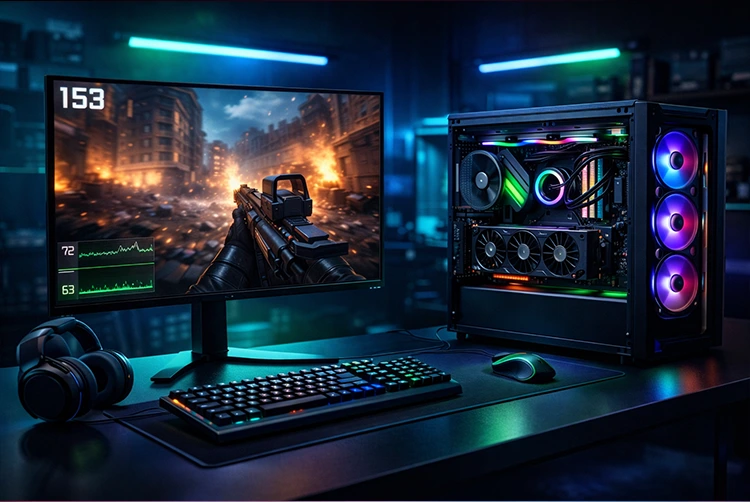
A powerful gaming PC doesn’t always guarantee smooth gameplay. Many gamers experience frame drops, stuttering, or inconsistent performance even with decent hardware. The reason is simple: a gaming PC needs proper optimization.
With the right PC gaming optimization tips, you can significantly improve FPS, reduce lag, and enhance overall system stability often without upgrading any hardware. This guide covers practical, proven methods every gamer should apply.
Build a Balanced Gaming System First
Optimization starts with balance. Even the strongest GPU can underperform if paired with slow memory, weak cooling, or a poor motherboard.
Before tweaking software settings, ensure your system is well-matched. Following structured recommendations from our gaming PC build guides helps prevent bottlenecks that no amount of optimization can fix.
Key balance points:
CPU and GPU should be matched for your resolution
RAM speed and capacity must suit modern games
Motherboard quality affects memory stability and BIOS tuning
Enable XMP and Optimize Your RAM
One of the most effective and overlooked optimizations is RAM configuration. Many gaming PCs run memory at default speeds, leaving performance untapped.
Essential RAM Optimization Steps:
Enable XMP (Intel) or DOCP (AMD) in BIOS
Use dual-channel RAM (2×8GB instead of 1×16GB)
Stick to stable speeds like 3200MHz or 3600MHz
Reliable kits such as Corsair’s memory are popular because of their stability. We cover this in detail in our Corsair Vengeance DDR4 gaming RAM guide.
If you’re unsure about capacity, our article on how much RAM is enough for gaming explains what most gamers actually need.
Keep Drivers and BIOS Updated (Smartly)
Outdated drivers can silently hurt gaming performance. GPU drivers, chipset drivers, and BIOS updates often include performance improvements and bug fixes.
Best Practices:
Update GPU drivers regularly using clean installs
Avoid beta drivers on stable systems
Update BIOS only if it improves compatibility or performance
A stable motherboard plays a big role here. Models featured in our best Gigabyte motherboards for gaming guide are known for reliable BIOS updates and strong memory support.
Optimize In-Game Graphics Settings for Maximum FPS
Running games on ultra settings doesn’t always deliver the best experience. Smart graphics optimization can boost FPS without sacrificing visuals.
High-Impact Settings to Adjust:
Lower shadow quality
Reduce volumetric lighting
Disable motion blur and film grain
Use DLSS or FSR when available
Set texture quality based on VRAM capacity
These changes often improve performance dramatically, especially in open-world and competitive games.
Windows Optimization for Gaming Performance
Windows itself can limit gaming performance if left unoptimized.
Important Windows Tweaks:
Enable Game Mode
Disable unnecessary startup programs
Use High-Performance power plan
Close background apps before gaming
Keep Windows updated (stable releases only)
These steps ensure system resources are focused on your game, not background tasks.
Storage Optimization and Load Time Improvements
Storage speed doesn’t directly increase FPS, but it improves loading times and reduces stutter in large games.
Storage Tips:
Install games on SSDs whenever possible
Keep at least 20% free disk space
Avoid running modern games from slow HDDs
Fast storage improves open-world streaming and overall responsiveness.
Cooling, Thermals, and Performance Stability
High temperatures cause thermal throttling, which reduces CPU and GPU performance automatically.
Cooling Optimization Tips:
Maintain proper case airflow
Clean dust every few months
Monitor CPU and GPU temperatures
Ensure fans are configured correctly
Good airflow improves performance and aesthetics. Builds inspired by our best RGB gaming setup balance looks with cooling efficiency.
DDR4 vs DDR5: Does Memory Type Affect Optimization?
Many gamers believe DDR5 is required for better gaming performance, but that’s not always true.
In real-world gaming:
DDR4 offers lower latency and excellent stability
DDR5 offers higher bandwidth but higher cost
FPS gains are minimal for most titles
For most players, DDR4 remains the smarter option. We explain this fully in DDR4 vs DDR5 comparison.
Final Thoughts
PC gaming optimization is about unlocking the performance you already paid for. From enabling XMP and updating drivers to tuning Windows and managing thermals, these optimizations work together to deliver smoother gameplay and better stability.
You don’t always need new hardware sometimes, smarter setup makes all the difference.
FAQs
How can I improve FPS without upgrading my PC?
Enable XMP, optimize in-game settings, update drivers, and reduce background processes.
Does RAM speed affect gaming performance?
Yes. Faster RAM improves minimum FPS and reduces stuttering in CPU-heavy games.
Is Windows Game Mode good for gaming?
Yes. It helps prioritize system resources and reduces background interference.
Do motherboards affect gaming performance?
Indirectly, yes. Better VRMs, BIOS stability, and memory support improve overall performance.
Is DDR4 still good for optimized gaming PCs?
Absolutely. DDR4 remains affordable, stable, and highly optimized for gaming.
