

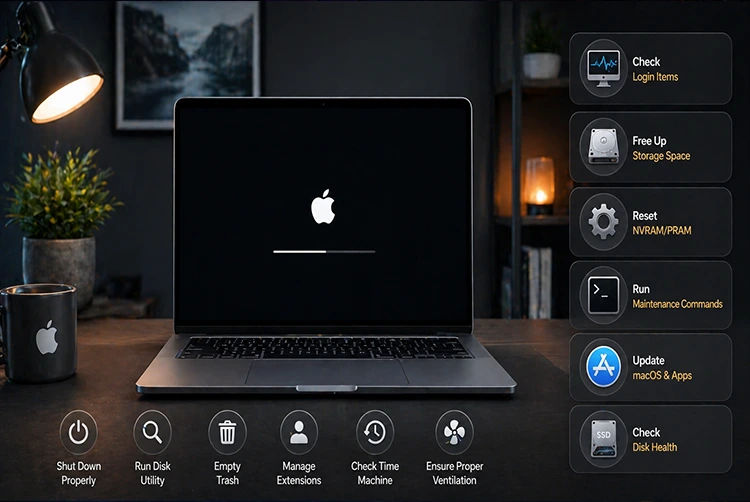
A Mac that takes 5, 10, or even 20 minutes to boot is one of the most frustrating daily experiences in tech especially when Apple Silicon Macs are supposed to start in under 30 seconds. Whether you’re on a MacBook Air, MacBook Pro, iMac, Mac mini, or Mac Studio running macOS Tahoe 26 or Sequoia 15, a slow startup almost always has a fixable cause.
Since Mac performance and PC performance optimization share some common ground, our PC gaming optimization guide covers parallel concepts on the Windows side useful if you’re cross-platform. And for gamers troubleshooting performance issues beyond just boot speed, our breakdown of how to reduce lag in online games covers network and system lag that can compound with slow startup problems.
What a Normal Mac Boot Time Should Look Like
Before troubleshooting, it’s worth knowing what “normal” actually is so you can calibrate whether your Mac has a real problem:
| Mac Type | Normal Cold Boot Time |
|---|---|
| Apple Silicon Mac (M1–M5) | 10–25 seconds |
| Intel Mac with SSD (2017–2020) | 30–60 seconds |
| Intel Mac with HDD (older) | 60–120 seconds |
| Any Mac after major macOS update | Up to 3 minutes (first boot indexing) |
Important: The first boot after a macOS update — including Tahoe 26.4.1 (released April 9, 2026) — is always slower than normal. Spotlight indexing, iCloud sync, and system optimization all run in the background immediately after an update. Wait 24–48 hours after any major update before concluding there’s a persistent boot problem. If your Mac consistently takes longer than these benchmarks on normal boots, there is a fixable cause. Read on.
Why Is My Mac Booting Slowly? — The Root Causes
Slow Mac startup almost always comes from one or more of these eight causes. Identifying which applies to your situation dramatically speeds up troubleshooting:
1. Too many login items — Apps set to launch automatically at startup each consume RAM and CPU during the boot sequence, stacking delays before your desktop is usable.
2. Low storage space — macOS needs free space (typically 15–20% of total capacity) for virtual memory management, system caches, and swap files. When the drive is nearly full, the boot sequence slows dramatically trying to find room.
3. External devices at startup — Printers, external hard drives, USB hubs, and other peripherals must be detected and initialized during boot. Incompatible or malfunctioning peripherals can hang the startup process.
4. Corrupted NVRAM/PRAM settings — Startup disk configuration, display resolution, time zone, and other settings stored in NVRAM can become corrupted, causing the Mac to search multiple volumes for the correct startup disk.
5. System Management Controller (SMC) issues — Intel only — The SMC handles power, thermal, and system management on Intel Macs. Corruption here causes unpredictable startup delays. Apple Silicon Macs manage this differently and don’t have a user-resettable SMC.
6. Outdated or incompatible software — Third-party apps — particularly VPNs, antivirus software, and system utilities — that run at startup may be incompatible with recent macOS updates, creating delays and hangs.
7. Corrupted Spotlight index — A damaged search index causes Spotlight to rebuild constantly, consuming disk I/O and CPU during startup and the minutes after login.
8. Full or fragmented startup disk — Beyond just free space, a startup disk with directory corruption can slow the boot sequence as macOS attempts error correction during startup.
Fix 1 — Remove Unnecessary Login Items (Biggest Impact)
Applies to: All Macs | Difficulty: Easy | Time: 2 minutes
Login items are apps that launch automatically when you log in. Every item in this list adds to your startup time — and lists tend to grow invisibly as apps install themselves without asking. This is the first and most impactful fix for most slow boot situations.
macOS Sequoia and Tahoe 26 (System Settings Method)
- Click the Apple menu () → System Settings
- Click General in the left sidebar
- Select Login Items & Extensions
- Under “Open at Login,” you’ll see the full list of apps launching at startup
- Select any app you don’t need at login and click the minus (–) button to remove it
- Scroll down to review the Allow in the Background section — apps listed here run silently without appearing in the Dock, and many users don’t realize they’re running
What to keep: Cloud sync apps (iCloud Drive), essential utilities you use immediately after login.
What to remove: Apps you can open manually when needed — music apps, chat clients, backup software with manual-run options, and any app from software you no longer actively use.
The “Reopen windows when logging back in” setting: When you restart or shut down, a dialog appears with a checkbox labeled “Reopen windows when logging back in.” Unchecking this prevents macOS from reopening all previously open apps and windows on next startup. If you’ve been leaving this checked, it’s multiplying your login item load on every boot.
Fix 2 — Free Up Storage Space
Applies to: All Macs | Difficulty: Easy | Time: 5–30 minutes
macOS needs approximately 15–20% of total storage free to run efficiently. When available space drops below 10%, virtual memory, swap files, and the boot process all slow down. Check your current storage:
- Apple menu () → System Settings → General → Storage
- The storage breakdown shows what’s using space by category
If you’re below 20% free, prioritize these:
Delete large unused files: Sort by file size. Go to Finder → File → New Smart Folder → configure to find files over 1GB. Applications you haven’t used in months are prime candidates.
Empty the Trash: It sounds obvious, but Trash doesn’t free space until emptied. Right-click the Trash icon → Empty Trash.
Clear Downloads folder: The Downloads folder accumulates years of files. Sort by date added and delete anything more than a few months old that you’ve already used.
Remove old iOS backups: Open Finder → click your iPhone in the sidebar → Manage Backups → delete outdated backups.
Clear application caches: Open Finder → use Go → Go to Folder → type ~/Library/Caches → sort by size → delete folder contents for apps you recognize (not system folders).
Use iCloud Drive to offload files: System Settings → Apple ID → iCloud → iCloud Drive — enable “Optimize Mac Storage” to move older files to iCloud automatically, freeing local space.
Aim to keep at least 10% free at minimum, with 20% or more as the target for consistently good performance.
Fix 3 — Disconnect External Devices at Startup
Applies to: All Macs | Difficulty: Easy | Time: 1 minute
During startup, macOS initializes and checks every connected peripheral — external drives, printers, USB hubs, SD cards, Thunderbolt docks, and monitors. An incompatible, malfunctioning, or slow external device can hold up the entire boot sequence while macOS waits for initialization.
Diagnostic test: Completely unplug every external device except your keyboard and mouse (and monitor if needed). Restart and time the boot. If startup is significantly faster, a peripheral is causing the delay.
Finding the culprit: Reconnect devices one at a time, restarting between each, until the slow boot returns. The last device you connected is the cause. Update its drivers, try a different cable or port, or leave it disconnected until startup completes.
External drives in particular: If you have an external hard drive or SSD connected, macOS may be trying to boot from it or check it for errors. Verify your startup disk is set correctly: Apple menu () → System Settings → General → Startup Disk.
Fix 4 — Run Safe Mode to Clear Caches and Diagnose
Applies to: All Macs | Difficulty: Easy | Time: 5 minutes
Safe Mode boots your Mac with only essential system components — no third-party login items, no non-essential kernel extensions, and no cached data from previous sessions. It also performs a directory check of your startup disk and clears system caches automatically. Running in Safe Mode then restarting normally often resolves slow startup issues by clearing corrupted caches and preventing problematic software from loading.
Safe Mode on Apple Silicon Macs (M1, M2, M3, M4, M5)
- Shut down your Mac completely
- Press and hold the Power button until “Loading startup options” appears on screen
- Select your startup disk from the list
- Hold the Shift key and click Continue in Safe Mode
- Release Shift when the login window appears — “Safe Boot” will show in the menu bar
- Log in and wait a minute for any background processes to settle
- Go to Apple menu () → Restart to restart normally (no Safe Mode)
- Test your startup speed after this normal restart
Safe Mode on Intel Macs
- Shut down your Mac completely
- Press the Power button to start
- Immediately hold the Shift key and keep holding it
- Release Shift when the login window appears — “Safe Boot” will show in the menu bar
- Log in normally, then restart (Apple menu () → Restart)
- Time your startup on this normal restart
What Safe Mode does: Clears the dynamic loader shared cache, font caches, and kernel extension caches. Performs a Spotlight reindex on startup. Checks the startup disk for directory errors. If your Mac boots noticeably faster after a Safe Mode + normal restart cycle, caches or a login item were causing the slowdown.
Fix 5 — Reset NVRAM/PRAM (Intel Macs) or System NVRAM (Apple Silicon)
Applies to: Intel Macs primarily; Apple Silicon has a simplified version | Difficulty: Easy | Time: 2 minutes
NVRAM (Non-Volatile Random-Access Memory) stores startup disk selection, display resolution, time zone, speaker volume, and other quick-access system settings. Corrupted NVRAM can cause the Mac to check multiple volumes looking for the right startup disk, which adds significantly to boot time.
Important: Resetting NVRAM is completely safe — it doesn’t delete files, apps, user accounts, or macOS itself. It only resets a small set of system preferences, which macOS will rebuild immediately after the reset.
Intel Mac NVRAM Reset
- Shut down your Mac completely
- Press the Power button to start
- Immediately press and hold: Command (⌘) + Option + P + R simultaneously
- Keep holding all four keys for 20 seconds — you’ll hear the startup chime (or see the Apple logo appear and disappear) twice on older Macs; on T2 chip Macs, just hold for 20 seconds
- Release the keys and let the Mac start normally
- After startup, re-check System Settings → General → Startup Disk and ensure the correct disk is selected
Apple Silicon Mac NVRAM
Apple Silicon Macs (M1 and later) manage NVRAM differently — it’s integrated into the SoC and managed automatically by macOS. There is no manual key combo for NVRAM reset as there is on Intel Macs. However, you can force a clean NVRAM state through Recovery Mode:
- Shut down your Mac
- Press and hold the Power button until “Loading startup options” appears
- Select Options → click Continue
- In the Recovery environment, open Terminal (from the Utilities menu)
- Type:
nvram -cand press Return - Type:
shutdown -r nowto restart
This clears the NVRAM on Apple Silicon Macs in cases where automatic management hasn’t resolved the issue.
Fix 6 — Reset the SMC (Intel Macs Only)
Applies to: Intel Macs ONLY — Apple Silicon Macs do not have a user-resettable SMC | Difficulty: Easy | Time: 2 minutes
The System Management Controller (SMC) handles power management, thermal management, battery charging, and system startup sequences on Intel Macs. SMC corruption can cause erratic startup behavior, including extreme delays and freezing at the Apple logo.
Intel MacBook (with non-removable battery — 2017 and later)
- Shut down completely
- Hold Shift + Control + Option + Power simultaneously for 10 seconds
- Release all keys
- Press Power to start normally
Intel MacBook (with removable battery — older models)
- Shut down and remove the battery
- Hold the Power button for 5 seconds
- Reinsert the battery
- Press Power to start
Intel iMac, Mac mini, Mac Pro (desktop)
- Shut down completely
- Unplug the power cable
- Wait 15 seconds
- Plug the power cable back in
- Wait 5 seconds, then press Power
After resetting SMC: Check fan behavior, system performance, and startup time. If battery percentage or fan speed was behaving erratically alongside slow boot, SMC reset often resolves all symptoms simultaneously.
Fix 7 — Reindex Spotlight
Applies to: All Macs | Difficulty: Easy | Time: 2 minutes to trigger; 30–60 minutes for reindex to complete |
A corrupted or incomplete Spotlight search index is a common cause of post-update slowness — including after Tahoe 26 updates. When the index is damaged, Spotlight continuously tries to rebuild it, consuming significant CPU and disk I/O in the background, which slows both boot time and the first 10–15 minutes after login.
Force Spotlight Reindex
- Go to Apple menu () → System Settings → Siri & Spotlight (or search “Spotlight” in System Settings search)
- Click Spotlight Privacy
- Click the + button and add your startup disk (usually named “Macintosh HD”) to the Privacy list — this tells Spotlight to stop indexing it
- Wait a few seconds, then select the disk in the Privacy list and click – to remove it
- This forces Spotlight to delete and completely rebuild the index from scratch
The rebuild runs in the background and typically completes in 30–60 minutes depending on how much data is on your drive. Your Mac will feel slower during this window while indexing runs — that’s normal. Test boot speed after the index is fully rebuilt.
Fix 8 — Run First Aid on Your Startup Disk
Applies to: All Macs | Difficulty: Easy | Time: 5–15 minutes
Directory errors on your startup disk can cause macOS to spend additional time during startup performing partial error correction. Disk Utility’s First Aid tool scans the volume structure and repairs directory issues.
On macOS Tahoe 26 and Sequoia
- Go to Applications → Utilities → Disk Utility
- In the sidebar, select Macintosh HD (your startup disk)
- Click First Aid in the toolbar
- Click Run and wait for the scan to complete
- If First Aid reports errors it couldn’t repair, you’ll need to run it from Recovery Mode instead
Running First Aid from Recovery Mode (for deeper repair)
- Apple Silicon: Hold Power until startup options appear → Select Options → Continue Intel: Restart and hold Command (⌘) + R until the Apple logo appears
- From the macOS Utilities menu, open Disk Utility
- Select Macintosh HD in the sidebar
- Click First Aid → Run
- Also run First Aid on Macintosh HD – Data if it appears separately
- Restart normally after completion
Fix 9 — Update macOS
Applies to: All Macs | Difficulty: Easy | Time: 30–90 minutes
Outdated macOS versions frequently contain known bugs that affect startup speed. Apple released several boot performance fixes in updates throughout the Tahoe 26 cycle:
- macOS Sequoia 15.0 and 15.0.1 introduced boot delays on M1 and M2 Macs (Apple Community reports confirmed 10–20 minute boot times, resolved in 15.1)
- macOS Tahoe 26.4.1 (released April 9, 2026) included stability and bug fixes that addressed startup-related performance regressions introduced in 26.4
To update:
- Apple menu () → System Settings → General → Software Update
- Install any pending updates
- After updating, give your Mac 30–60 minutes on the first boot for background optimization to complete before evaluating speed
macOS Tahoe 26 and Intel Macs: Tahoe 26 is the final macOS version supporting Intel Macs — specifically only the MacBook Pro (16-inch, 2019), MacBook Pro (13-inch, 2020, four Thunderbolt 3 ports), iMac (2020), and Mac Pro (2019). If you have an older Intel Mac not on this list, you cannot upgrade to Tahoe — macOS Sequoia 15 (latest available for your model) will continue receiving security updates for approximately three years.
Fix 10 — Disable the “Reopen Windows When Logging Back In” Option
Applies to: All Macs | Difficulty: Easy | Time: 30 seconds
This single checkbox is responsible for surprisingly slow boots on many Macs. When enabled, macOS saves the state of every open window and app when you restart or shut down, and reopens all of them on next boot. If you had 15 apps and 40 browser tabs open, all of those reopen simultaneously during startup.
To disable permanently: When you see the restart/shutdown dialog, uncheck “Reopen windows when logging back in” before clicking Restart or Shut Down. You’ll need to do this each time unless you change the default.
To disable via System Settings:
- Apple menu () → System Settings → Desktop & Dock
- Scroll down to find “Close windows when quitting an app” — enable this to prevent apps from saving window state
- When shutting down via the Apple menu, uncheck the “Reopen windows” checkbox
Fix 11 — Clean Install macOS (Last Resort)
Applies to: All Macs | Difficulty: Advanced | Time: 2–4 hours | Risk: High if backup not current
A clean install erases everything on your startup disk and installs a fresh copy of macOS. It resolves startup issues caused by deeply corrupted system files, accumulation of conflicting software, or persistent issues that survive all other fixes. Always back up with Time Machine first.
Back Up First
- Connect an external drive
- Apple menu () → System Settings → General → Time Machine
- Select your backup disk and let Time Machine complete a full backup
- Verify the backup completed in Time Machine settings before proceeding
Clean Install via Recovery Mode
- Apple Silicon: Hold Power until startup options → Options → Continue Intel: Restart holding Command (⌘) + R until Apple logo appears
- From macOS Utilities, open Disk Utility
- Select Macintosh HD → click Erase (format as APFS)
- Quit Disk Utility
- Select Reinstall macOS → click Continue
- Follow the on-screen instructions
After installation completes, you can restore from your Time Machine backup selectively — reinstall your apps fresh and migrate only the data you need, rather than restoring the full system state (which may carry back the same issues).
macOS Tahoe 26 Specific Issues
If you’re running macOS Tahoe 26 and experiencing slow boot, these Tahoe-specific issues are worth knowing:
Tahoe 26.4 regression on Intel Macs: Community reports from the MacRumors forums confirm that macOS Tahoe 26.4 introduced new performance issues on the 2019 Mac Pro specifically, including excessive Mail app CPU usage (100%+ in background), mouse and keyboard hitching, and video playback hangs during and after the boot sequence. Restarting resolves the Mail issue temporarily; Apple has been tracking this as a known regression.
Tahoe 26.3.1 monitor detection issues: Users with daisy-chained Thunderbolt monitors (particularly LG Thunderbolt displays) reported that macOS stopped detecting the secondary monitor during startup after the 26.3 Beta 3 update — partially related to startup initialization sequence changes.
Liquid Glass UI overhead on older hardware: macOS Tahoe 26’s new Liquid Glass design language introduced real-time rendering of translucent effects that consume additional GPU resources. On older Apple Silicon (M1) and remaining Intel Macs, this manifests as slightly longer login sequences and increased animation jitter immediately after login. Reducing transparency in System Settings → Accessibility → Display → Reduce Transparency can help.
Solution for Tahoe-specific issues: The fastest resolution is ensuring you’re on the latest point release (26.4.1 as of April 9, 2026), as Apple has been issuing targeted fixes for Tahoe regressions on a monthly cycle.
Fix Priority Reference — Work Through in This Order
| Priority | Fix | Best For |
|---|---|---|
| 1 | Remove Login Items | All Macs — biggest single impact |
| 2 | Free Up Storage Space | Macs below 20% free space |
| 3 | Disconnect External Devices | All Macs with peripherals connected |
| 4 | Safe Mode + Restart | All Macs — clears caches, diagnoses apps |
| 5 | Reset NVRAM | Intel Macs with startup disk confusion |
| 6 | Reset SMC | Intel Macs with power/startup anomalies |
| 7 | Reindex Spotlight | All Macs — post-update especially |
| 8 | First Aid (Disk Utility) | All Macs — directory repair |
| 9 | Update macOS | All Macs running older point releases |
| 10 | Disable Reopen Windows | All Macs with many apps open at shutdown |
| 11 | Clean Install | Last resort — persistent unresolvable issues |
Frequently Asked Questions
Why is my Mac suddenly booting slowly after a macOS update?
Post-update slow boots are very common and usually temporary. After installing macOS Tahoe 26 or Sequoia updates, the system runs background tasks — Spotlight reindexing, iCloud sync, Photo library analysis, system optimization — that consume disk I/O and CPU for 30–90 minutes after the first boot. Wait 24 hours and test again before troubleshooting further. If slowness persists beyond 48 hours, see Fix 7 (Spotlight reindex) and Fix 9 (update to latest point release).
How do I know if my Mac is slow to boot because of a hardware problem?
Run Apple Diagnostics: on Apple Silicon Macs, hold the Power button at startup → select Options → then hold the Power button again to start Diagnostics. On Intel Macs, hold the D key while starting. Diagnostics tests RAM, storage, GPU, and other hardware components and reports error codes for any failures found.
Does resetting NVRAM or SMC delete my files?
No. NVRAM reset only clears a small set of system configuration preferences (startup disk, display settings, time zone, speaker volume). It does not touch your files, applications, user accounts, or macOS installation. SMC reset is equally safe it resets power management firmware, not user data.
My Mac takes 20 minutes to boot. Is that fixable?
Yes, in almost all cases. Boot times of 20+ minutes are typically caused by: severely low storage space (under 5% free), corrupted NVRAM pointing to the wrong startup disk, a failing external drive connected during boot, or in the case of macOS Sequoia 15.0/15.0.1 on M1 Macs, a known Apple bug resolved in the 15.1 update. Work through Fixes 1–4 first, then NVRAM reset.
Can I speed up Mac startup without deleting apps?
Yes. Removing apps from login items (Fix 1) doesn’t uninstall them — they just won’t launch at startup automatically. You still open them manually any time you want. Safe Mode cycling (Fix 4), NVRAM reset (Fix 5), and Spotlight reindex (Fix 7) all improve startup without removing any applications.
