

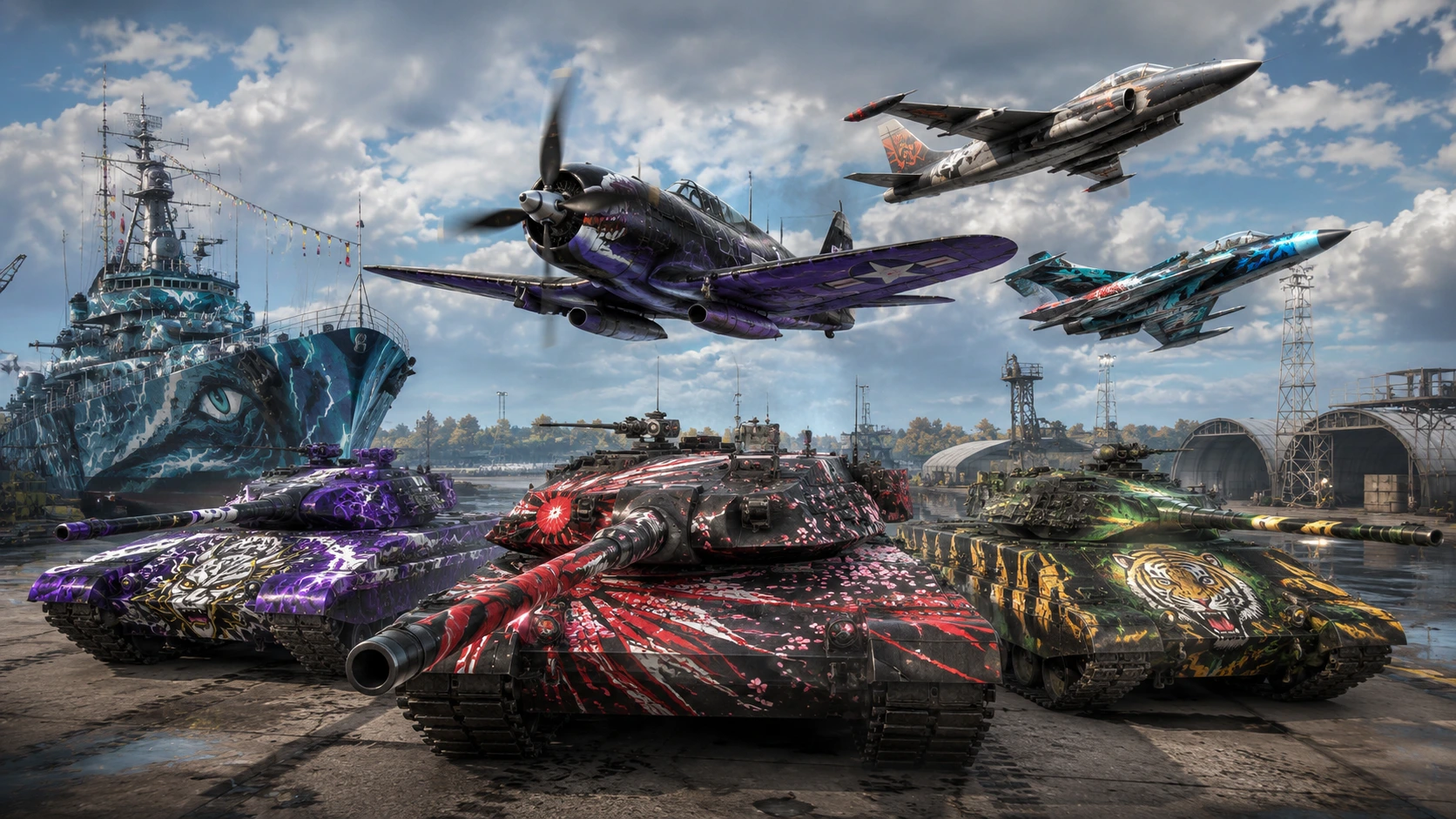
War Thunder skins are custom camouflages and liveries that players can apply to their tanks, aircraft, helicopters, and ships to personalize how their vehicles look in battle. Gaijin Entertainment, the developer behind War Thunder, officially supports two distinct types of skins: custom user skins, which are free, fan-made, and only visible to you, and marketplace decorator skins, which are official or community-approved camouflages that cost real money or Gaijin Coins and are visible to every other player in the match.
Understanding the difference between these two systems matters a lot, because they work completely differently and serve different purposes. This guide covers exactly how to install custom skins, how to create your own from scratch, how the official marketplace works, and answers to the most common questions players have about War Thunder skins systems.
Custom Skins vs. Marketplace Skins: What’s the Difference?
Before diving into installation, it’s important to understand that War Thunder has two entirely separate skin systems, and confusing them is the most common source of frustration for new players.
| Feature | Custom User Skins | Marketplace Skins |
|---|---|---|
| Cost | Free | Real money or Gaijin Coins |
| Visible to others? | No — only you can see them | Yes — visible to all players |
| Source | War Thunder Live or self-made | Official Gaijin Market |
| Installation | Manual file placement | Automatic in-game purchase |
| Risk of ban | None — officially authorized | None — official feature |
It’s worth stressing this clearly: using customizable sights, skins, hangars, and sound mods through the official War Thunder Live system is perfectly safe and explicitly authorized by Gaijin. There is no risk to your account from installing custom user skins through the proper channels described below.
If you’re optimizing your overall setup for a game like War Thunder, which can be demanding on lower-end hardware during large-scale battles, our guide on optimizing a gaming laptop for esports and competitive play covers settings adjustments that can help performance across vehicle-heavy combat games like this one.
How to Install Custom in War Thunder Skins
Installing a custom skin in War Thunder is a straightforward process once you know where the files need to go. Here’s the complete step-by-step method:
Step 1: Find and Download a Skin
Visit the War Thunder Live website (live.warthunder.com) and click on the Camouflages tab. From there, you can browse thousands of community-made skins for nearly every vehicle in the game. Filtering by most-downloaded skins is a good way to find high-quality, well-tested options. You can search by vehicle model using hashtags — for example, typing a tank or aircraft’s exact model name will surface skins made specifically for that vehicle.
Once you find a skin you like, download the .zip file and extract its contents to a folder on your desktop. You’ll typically need an unzip tool like WinRAR or 7-Zip if you don’t already have one.
Step 2: Create a User Skin Template In-Game
Launch War Thunder, right-click on the vehicle you want to customize, and select Customization. A menu will appear in the lower-right corner of the screen. Look for the Magic Wand button in the “User Skin” section and click it — this generates a folder specifically for that vehicle’s custom textures.
Take note of the folder name that gets created (it usually follows a pattern like template_vehiclename), since you’ll need to locate it in the next step.
Step 3: Locate Your UserSkins Folder
Navigate to your War Thunder installation directory and find the UserSkins folder. The exact path depends on how you installed the game:
- Launcher version:
C:\Program Files (x86)\Gaijin\War Thunder\UserSkins - Steam version:
C:\Program Files (x86)\Steam\steamapps\common\War Thunder\UserSkins
Inside this folder, find the specific subfolder that was created in Step 2, matching your vehicle.
Step 4: Replace the Files
Clean out the folder of its existing placeholder files, then copy and paste the contents of your downloaded skin archive directly into that folder, replacing everything. The downloaded skin will typically include several .dds or .tga texture files along with a configuration file named after the vehicle.
Step 5: Activate the Skin In-Game
Return to War Thunder, open the Customization menu for that vehicle again, and change the User Skin dropdown from “Disabled” to the name of the template folder you just filled in. If the skin doesn’t immediately appear, click the Refresh button to reload the available camouflage list. Once selected, your new custom skin will display on the vehicle in your hangar and during gameplay.
Remember: this skin is visible only to you. Other players in your matches will continue to see the vehicle’s default or standard appearance, since custom skins are stored and rendered entirely on your local client.
How to Create Your Own Custom Skin
If you want full creative control rather than downloading someone else’s work, War Thunder also supports building your own camouflage from scratch.
Requirements: Basic familiarity with an image editor like Photoshop or a free alternative like GIMP, since skin creation involves direct texture editing.
The general workflow:
- Generate the texture template using the same Magic Wand button described above
- Open the vehicle’s hull or fuselage texture file in your image editor
- Create a new layer and design your camouflage pattern, decal, or artwork directly on it
- Use selection tools (the Magic Wand selection tool works well for this) to isolate your design
- Save your work, merge the layers, and export the final texture back into its original file format (typically
.tga) - Replace the old texture file in your UserSkins folder with your newly edited version
- Refresh the camouflage list in-game and select your finished design
For more advanced effects — like giving a decal a worn, weathered look that blends naturally with the base camouflage — skilled creators often paint into the alpha channel using gray tones to create semi-transparency, letting the underlying texture show through subtly.
Aircraft skins follow a nearly identical process to ground vehicle skins, with one key difference: aircraft custom skins are fixed and cannot be procedurally scaled the way some ground vehicle skins can be.
War Thunder Marketplace Skins: How to Buy Visible Camouflages
If you want a skin that other players can actually see during battle, custom user skins won’t get you there — you’ll need to use the official War Thunder Market instead.
What the Marketplace Offers
The Market is an official Gaijin-run platform where players can buy and sell various in-game items using a special currency called Gaijin Coins, which can be earned by selling items on the Market or purchased directly. Through the Market, players can acquire:
- Decorator camouflages — official or curated community skins visible to everyone in a match
- Camouflage trophies (chests) — lootbox-style containers that can yield rare or unique skins
- Decals — stickers and emblems that can be applied to vehicles
- Vehicle coupons — redeemable items tied to specific vehicles or camouflages from past events
How to Access the Market
You can reach the War Thunder Market either through the in-game hangar interface by navigating Store → Market, or by visiting the official site directly at trade.gaijin.net. You’ll log in using the same email and password associated with your War Thunder account. Always double-check the URL carefully before entering your credentials — it should match the official login.gaijin.net domain exactly, since phishing sites mimicking the Gaijin login page are a known risk in any game with a real-money marketplace.
Important Things to Know About Marketplace Skins
Not all skins are tradable. Some event-exclusive camouflages, particularly those obtained through limited-time crafting events, are explicitly marked as non-tradable by Gaijin and cannot be resold on the Market regardless of how they were obtained.
Console players have limited Market access. Players on Xbox and PlayStation currently cannot access the Gaijin Marketplace the same way PC players can, which has been a long-standing point of community feedback, since console players are often limited to obtaining skins through randomized crate openings rather than direct purchases.
Camouflage visibility settings exist. War Thunder lets you control which types of camouflages you see on other players’ vehicles in battle — you can choose to display only historical skins, semi-historical skins, or all skins regardless of authenticity. By default, the game shows only historical camouflages, but selecting any non-historical skin for your own vehicle automatically switches your display setting to show all types.
Creators can earn real money. Community camouflage artists whose designs are selected for the official Market receive a percentage of sales in Gaijin Coins, and the developers have stated that creators can eventually convert earnings into real currency once a skin reaches a certain sales threshold.
War Thunder Skins FAQ
Are custom skins in War Thunder safe to use?
Yes. Using customizable skins, sights, hangars, and sound mods through the official War Thunder Live system is explicitly authorized by Gaijin Entertainment and carries no risk of account suspension.
Can other players see my custom skin?
No. Custom user skins downloaded or created through the UserSkins folder method are only visible on your own local game client. Other players will continue to see the vehicle’s standard appearance.
How do I make my skin visible to other players?
You need a marketplace decorator skin purchased through the official Gaijin Market (trade.gaijin.net), rather than a custom user skin. Marketplace skins are visible to everyone in your matches.
Where do I find custom skins for War Thunder?
The official War Thunder Live website (live.warthunder.com) hosts thousands of community-made camouflages searchable by vehicle name.
What file formats do War Thunder skins use?
Custom skins typically use .dds or .tga texture files, along with a .blk configuration file specific to the vehicle.
Can I install custom skins on console (Xbox or PlayStation)?
Custom user skin installation via the UserSkins folder is a PC-specific feature, since it requires direct file system access. Console players have more limited customization options and do not have the same access to the Gaijin Marketplace as PC players.
Do custom skins affect gameplay or performance?
No. Custom skins are purely cosmetic and have no effect on vehicle performance, hit detection, or any other gameplay mechanic.
Can I sell a skin I create?
If your design is selected and approved for the official War Thunder Market, you can earn Gaijin Coins from sales, with the potential to convert those earnings to real money after reaching a specified sales threshold.
Final Thoughts
War Thunder skins system strikes a smart balance between creative freedom and competitive fairness: anyone can personalize their own hangar experience for free using custom user skins, while the official marketplace gives dedicated creators and players a way to flaunt unique, visible camouflages without opening the door to inappropriate or low-quality content flooding public matches. Whether you’re downloading a historically accurate paint job from War Thunder Live or building your own design in Photoshop, the process is simple, completely safe, and one of the most underrated customization features in any vehicle combat game on the market today.
