

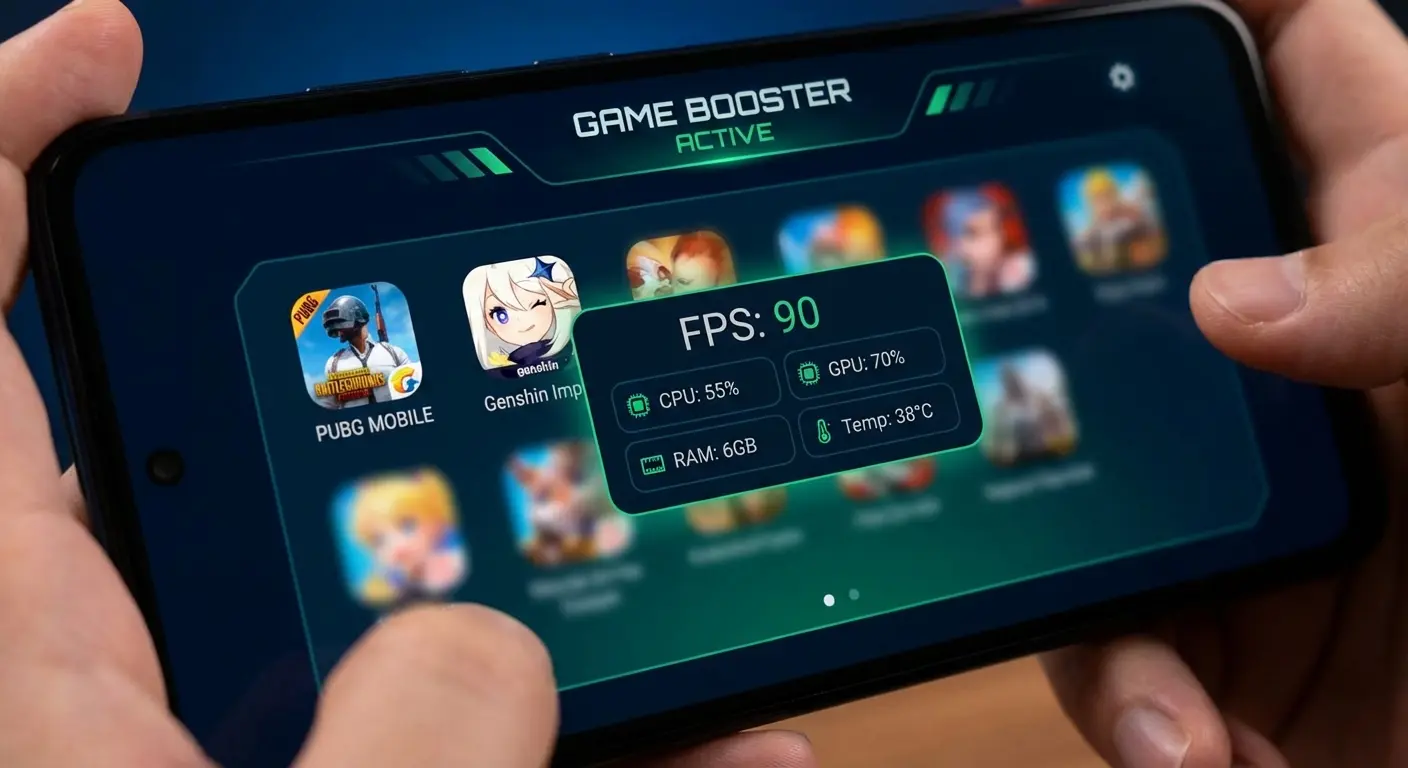
Lag in mobile online games is the ultimate frustration — that split-second delay that turns a winning shot into a defeat in PUBG Mobile, COD Mobile, Free Fire, or Genshin Impact. In 2026, with ultra-realistic graphics, 120 FPS modes, and massive cross-platform matches, even flagship phones like the Galaxy S26 or iPhone 18 can struggle if not optimized properly.
The good news? You don’t need a new phone. Most lag comes from background processes, poor network, overheating, or wrong in-game settings. This step-by-step guide gives you proven, up-to-date fixes that can drop your ping from 150 ms to under 40 ms and boost FPS by 30–60%. Follow them in order for the biggest gains.
1. Close Background Apps and Use Game Booster Apps
Your phone runs dozens of apps in the background, eating RAM and CPU. Online games need every resource.
Quick fix:
- Swipe up and close everything except your game.
- Turn on Game Turbo / Game Space (Samsung), Game Focus (OnePlus), or iOS Focus Mode.
- Install a dedicated booster: GFX Tool, Game Booster 4x Faster, or the built-in ones in MIUI/HyperOS.
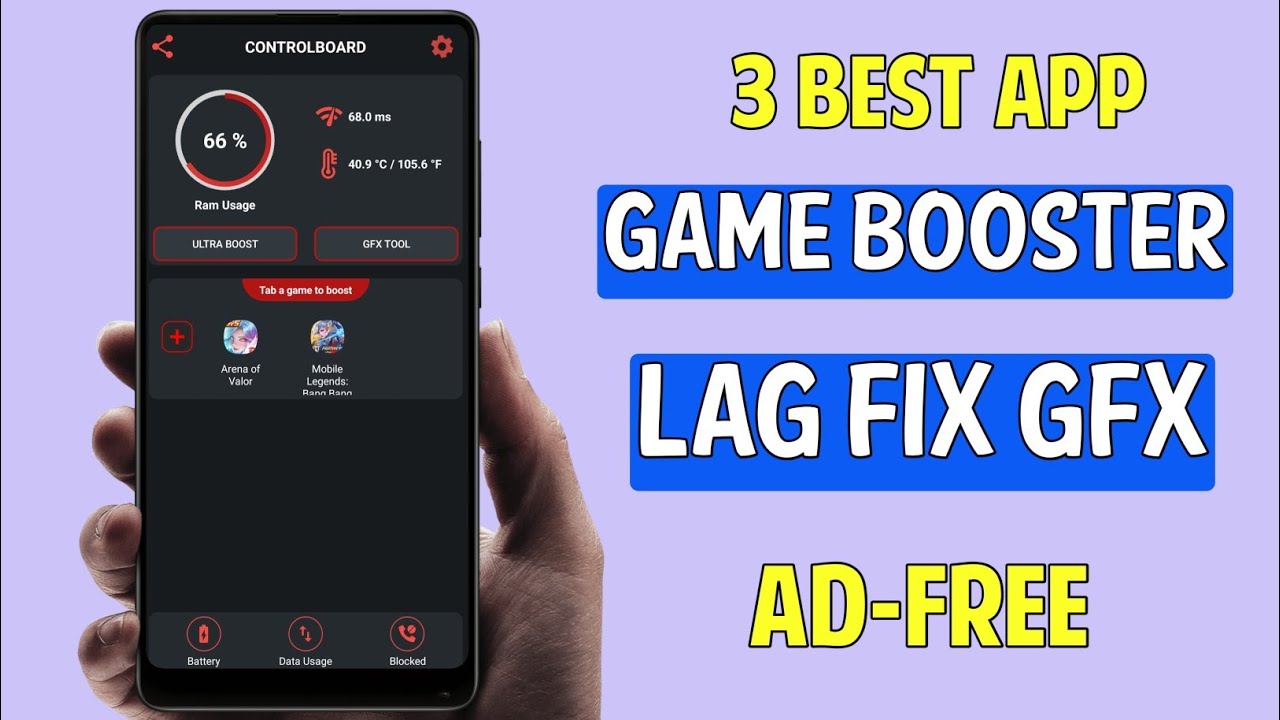
These apps force higher priority to your game, clear RAM, and even fake higher FPS in some titles. Users report 20–40 FPS gains instantly.
Pro tip: Enable “Ultra Boost” or “GFX Tool” mode before launching ranked matches.
2. Lower In-Game Graphics for Massive FPS Gains
High graphics look amazing but kill performance on mobile.
Best settings for zero lag (tested on 2026 devices):
- Graphics: Smooth or Balanced
- Frame Rate: High or Extreme (if your phone supports 90/120 Hz)
- Style: Disable shadows, anti-aliasing, and post-processing
- Turn off Auto-Adjust and Bloom
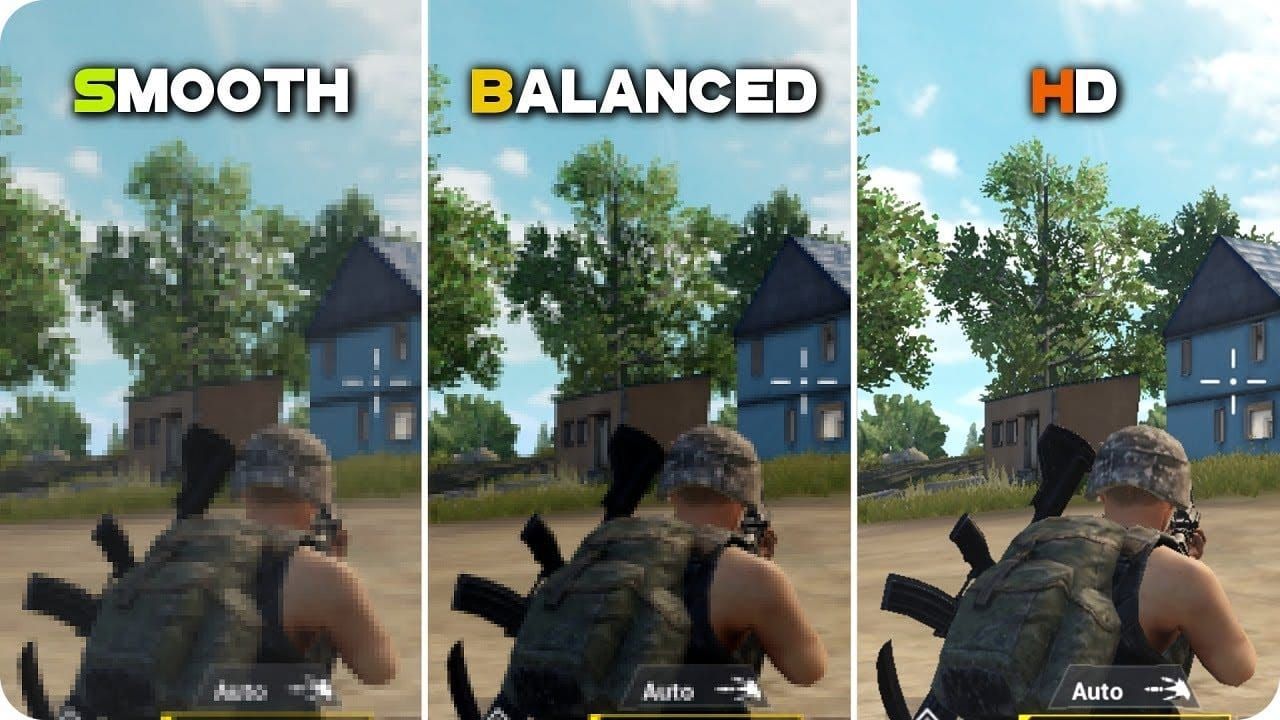
Smooth vs Balanced vs HD comparison — notice how much smoother gameplay feels on the left while still looking decent.
In PUBG Mobile and COD Mobile, switching to Smooth + High FPS can give you 60+ stable FPS even on mid-range phones. Many pros play on these settings for competitive edge.
3. Fix Network Lag – The #1 Killer in Online Games
90% of “rubber-banding” and high ping comes from WiFi or mobile data issues.
Step-by-step network fixes:
- Use 5 GHz WiFi (not 2.4 GHz) for lower latency.
- Move closer to router or use a WiFi extender.
- Restart router and enable QoS (Quality of Service) for gaming devices.
- Switch to mobile data if WiFi is congested (4G/5G is often more stable in 2026).

Run a speed test before playing — aim for ping under 30 ms and jitter under 5 ms. Anything above 80 ms will feel laggy in shooters.
Extra: Use Cloudflare 1.1.1.1 or Google DNS in your phone settings for faster routing. Avoid free VPNs — they add latency. Paid gaming VPNs like ExitLag or WTFast can help if you’re on international servers.
4. Enable Developer Options & Advanced Tweaks (Android Only)
Hidden settings can unlock huge performance boosts.
How to activate:
- Go to Settings → About Phone → Tap Build Number 7 times.
- Search “Developer options”.
- Enable:
- Force 4x MSAA (smoother graphics without much FPS loss)
- Disable HW overlays
- Set animation scale to 0.5x or off
- Force GPU rendering

Force 4x MSAA is the single best tweak for visual quality + stability in 2026 games.
iPhone users: Turn off “Limit Frame Rate” in Settings and enable Low Power Mode only when needed (it actually helps some titles).
5. Stop Overheating – The Silent FPS Killer
Phones throttle CPU/GPU when hot, causing sudden lag spikes.
Solutions:
- Play in a cool room (under 25°C).
- Remove phone case during long sessions.
- Use a phone cooler fan (clip-on models with RGB keep temps 10–15°C lower).
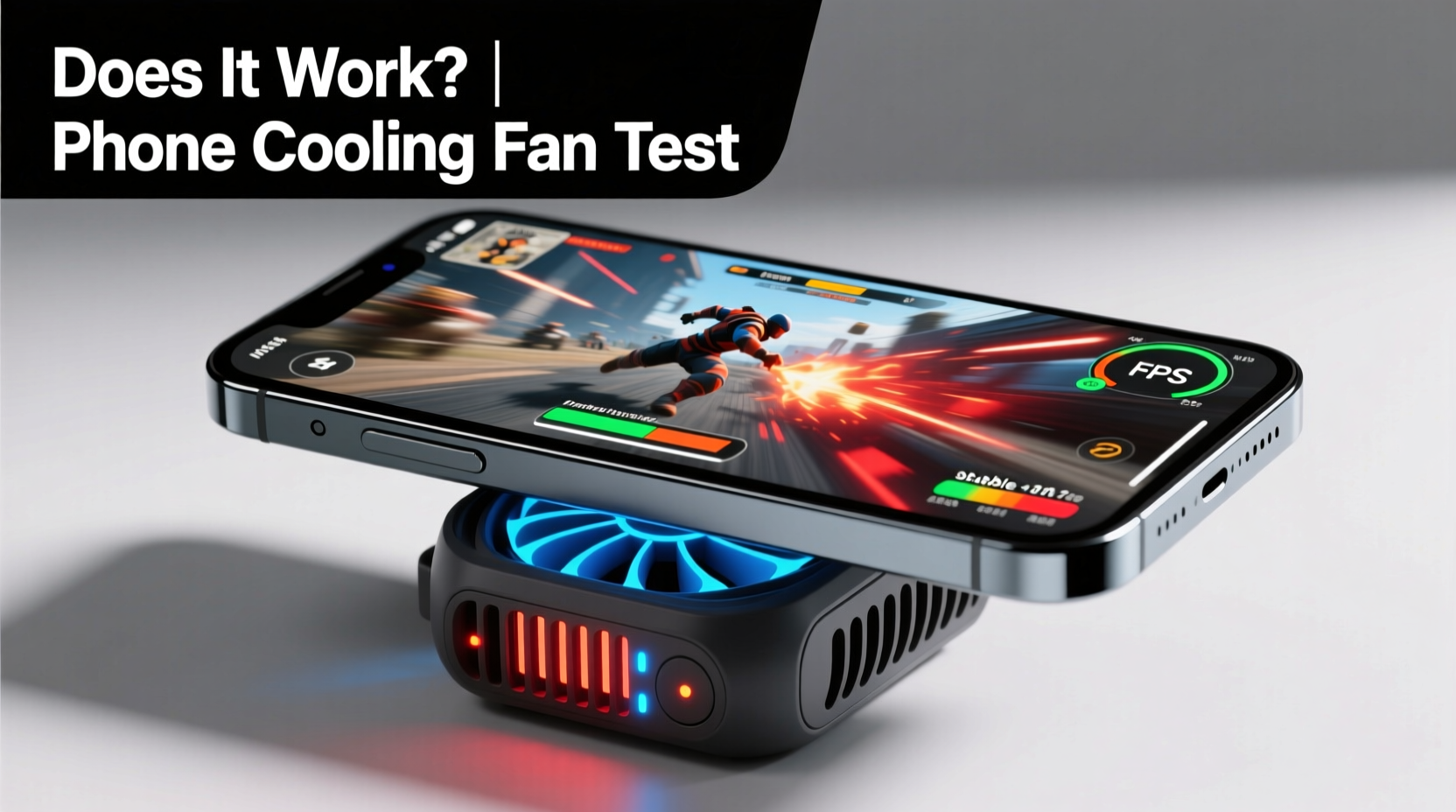
A good cooler can maintain stable 120 FPS for hours in Genshin Impact or Arena Breakout.
Also: Charge to 80% max and disable fast charging while playing — heat from charging kills performance.
6. Keep Everything Updated & Clear Cache
Outdated games, drivers, and OS cause compatibility lag.
- Update your game and phone OS immediately (Android 16 and iOS 19 in 2026 have major gaming optimizations).
- Clear game cache weekly (Settings → Apps → Storage).
- Reinstall the game if lag started after an update.
7. Bonus: Hardware Upgrades That Pair Perfectly
If software tweaks aren’t enough, a better phone or accessory changes everything. Our recent Intel Arc B570 guide shows how modern GPUs handle high-FPS mobile streaming and emulation flawlessly when paired with your phone.
For immersive single-player experiences with zero lag, check our Best Immersive Sim Games 2026 — many now have mobile ports optimized for smooth 60 FPS.
Real Results You Can Expect
After applying all fixes:
- Ping: 20–40 ms
- FPS: 60–120 stable
- No more rubber-banding or dropped packets
Thousands of players in 2026 ranked matches use exactly these steps to climb leaderboards.
FAQs About Reducing Lag in Mobile Online Games
Why does my phone lag only in online games but not offline?
Online games need constant server communication. Network + background apps cause 80% of issues. Offline games only use local hardware.
Is 60 FPS enough or should I aim for 120?
60 FPS feels smooth for most. 120 FPS is noticeable in fast shooters like COD Mobile but requires a 120 Hz screen and strong cooling.
Do game booster apps actually work in 2026?
Yes the latest versions use AI to prioritize RAM and GPU. GFX Tool and built-in boosters are still the most effective.
Will a VPN reduce lag?
Only premium gaming VPNs (ExitLag, WTFast). Free VPNs usually increase ping.
How do I reduce lag in Genshin Impact specifically?
Set graphics to Lowest + 60 FPS, enable “Battery Saver” in-game, and use a cooler. It’s one of the heaviest mobile games.
Lag doesn’t have to ruin your games anymore. Apply these fixes today and you’ll feel the difference in your next match. Smooth gameplay, lower ping, and higher ranks are waiting.
For more performance tips across platforms, read our NVIDIA DLSS 5 breakdown or dive into Ranking the Steam Free Games of All Time for browser alternatives that run perfectly on any device. Happy gaming may your ping always stay under 30 ms!
