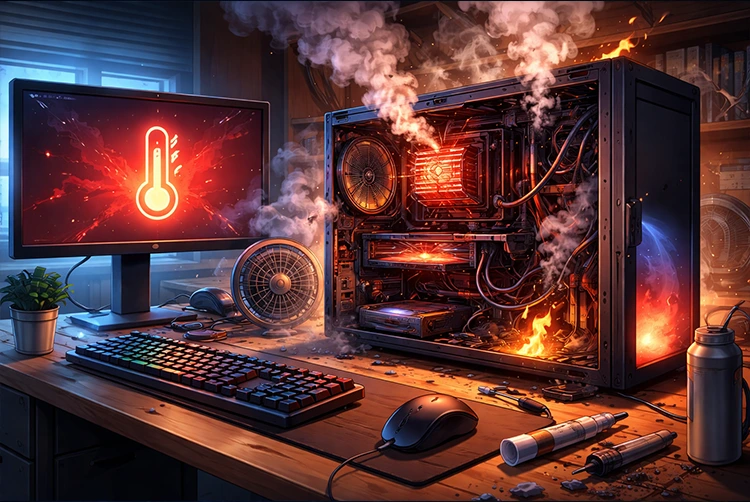
Your gaming PC suddenly throttles FPS, fans scream like jet engines, or the system shuts down mid-match? PC overheating is one of the most common (and preventable) issues in 2026. Modern high-TDP CPUs and GPUs generate massive heat during demanding games, streaming, or rendering, but dust, dried thermal paste, poor airflow, and software issues turn your rig into a toaster.
In this guide, you’ll learn exactly why your PC overheats, the warning signs, safe temperature ranges, and step-by-step fixes that work for desktops and gaming laptops. Follow them in order for the fastest results—most players see 10–30°C drops and stable performance after basic maintenance.
Safe Temperature Ranges in 2026
- Idle: 30–50°C (CPU/GPU)
- Gaming/Load: 65–85°C is normal and safe for most modern chips.
- Danger Zone: 90–95°C+ triggers thermal throttling (reduced clocks = lower FPS).
- Critical: 100°C+ risks automatic shutdowns or long-term damage.
High-end chips (RTX 50-series, Ryzen 9000, Intel Core Ultra) can briefly hit 95°C safely, but sustained temps above 85°C mean something needs attention.
Common Symptoms of PC Overheating
- Loud, constantly ramping fans
- Sudden FPS drops or stuttering during games
- Random crashes, blue screens, or shutdowns
- The case feels hot to the touch
- High CPU/GPU usage even on light tasks
- Performance throttling (HWInfo or MSI Afterburner shows clocks dropping)
If you notice these, stop heavy use immediately and start troubleshooting.
Top Causes of PC Overheating
- Dust Buildup — The #1 culprit. Dust clogs fans, heatsinks, and vents, blocking airflow.
- Dried or Poorly Applied Thermal Paste — After 1–2 years, paste degrades and stops transferring heat effectively.
- Poor Case Airflow — Bad fan configuration, blocked intakes, or cable mess traps hot air.
- High Ambient Room Temperature — Gaming in a warm room (above 25–28°C) makes cooling harder.
- Overclocking or High Power Limits — Pushing components beyond stock settings generates extra heat.
- Background Processes & Malware — Too many apps, browser tabs, or mining software max out CPU/GPU.
- Failing Fans or Cooler — Worn bearings or dead fans can’t move enough air.

Dust-clogged CPU socket — this is what kills cooling performance over time.
Step-by-Step Fixes for PC Overheating
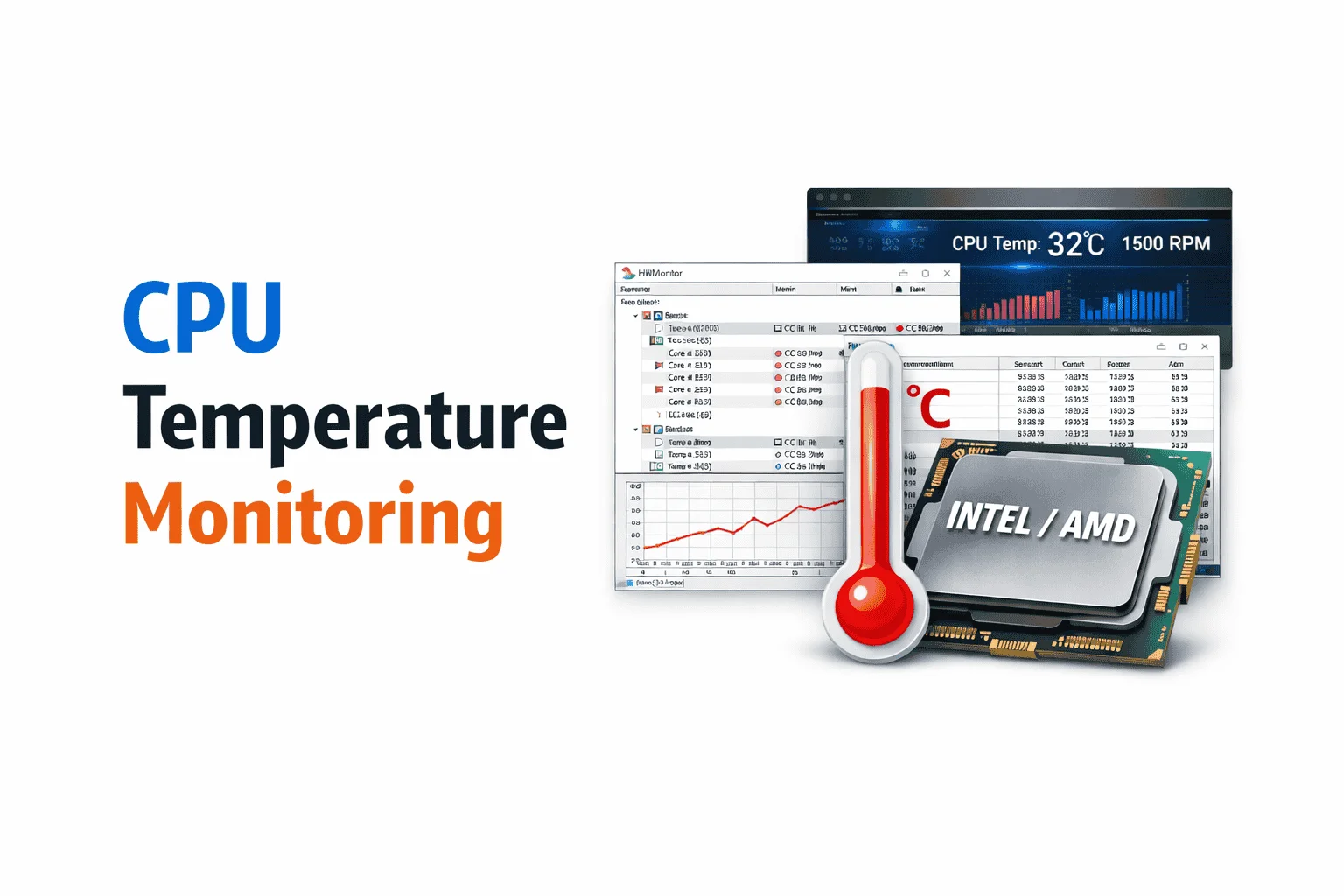
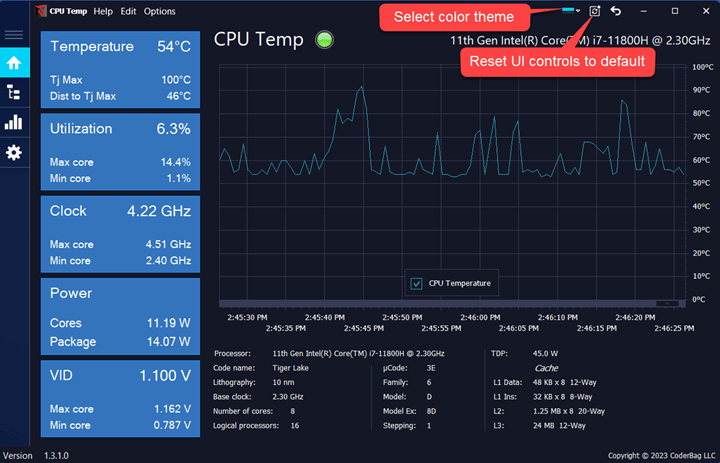
1. Monitor Temperatures First Download free tools:
- HWMonitor or HWInfo (detailed sensors)
- MSI Afterburner + RTSS (GPU + FPS overlay)
- Core Temp or Ryzen Master (CPU-specific)
Run a stress test (Prime95 for CPU, FurMark for GPU) while watching temps. Log idle vs load numbers.
2. Clean Dust Thoroughly Power off, unplug, and open the case.
- Use compressed air (short bursts) to blow dust from fans, heatsinks, and filters.
- Vacuum gently or use a soft brush for stubborn spots.
- For laptops: Clean vents with compressed air (don’t open unless experienced).
Do this every 3–6 months, or more if you have pets or smoke.
3. Reapply Thermal Paste Old paste is a silent killer.
- Remove cooler, clean old paste with isopropyl alcohol (90%+) and lint-free cloth.
- Apply a pea-sized dot (or X-pattern for larger CPUs) in the center.
- Reinstall cooler evenly (don’t overtighten).
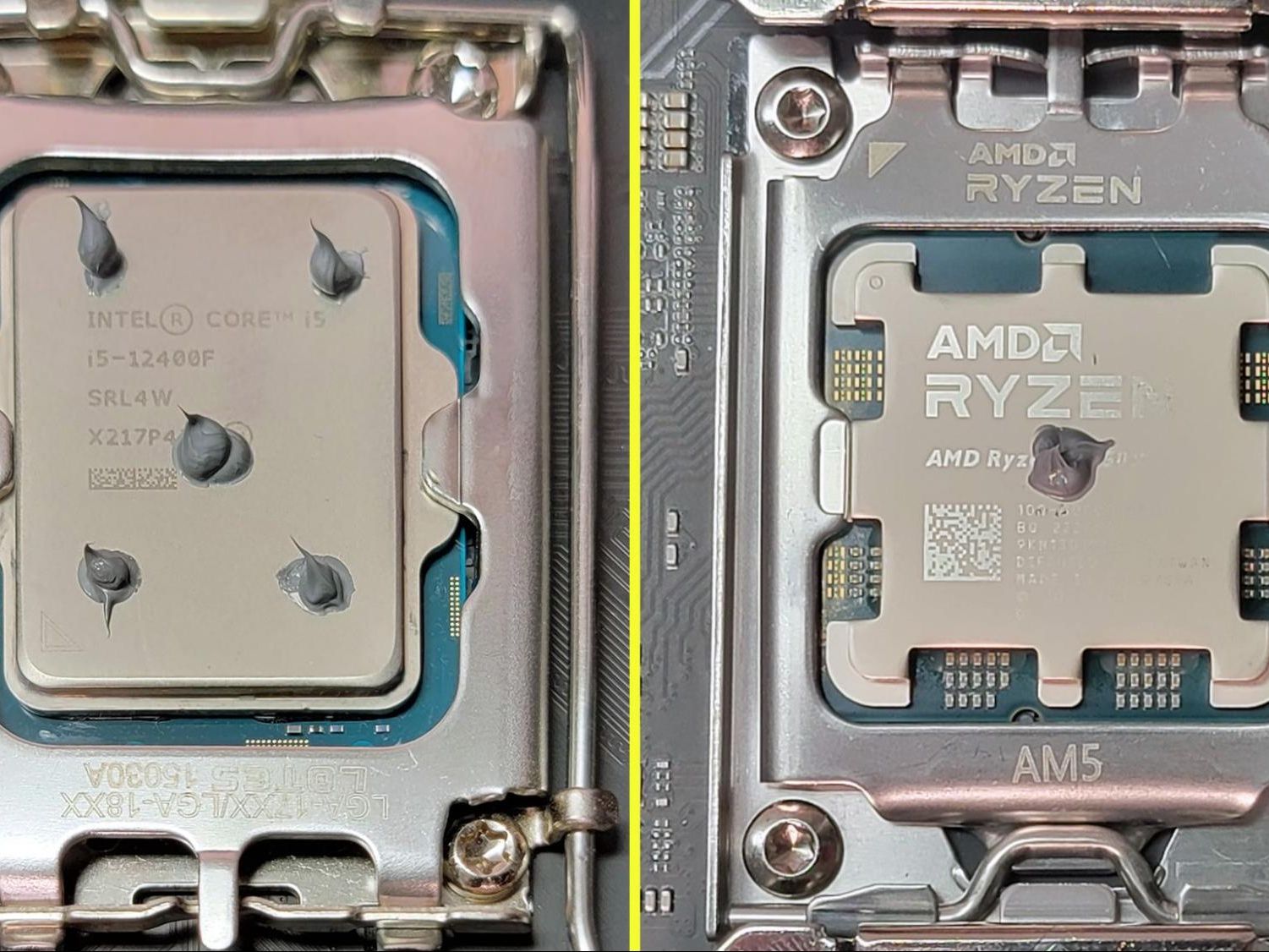
Proper thermal paste application (pea method works best for most modern CPUs).
High-quality paste like Arctic MX-6 or Thermal Grizzly Kryonaut lasts longer.
4. Optimize Case Airflow
- Front/bottom: Intake fans (positive pressure helps).
- Rear/top: Exhaust fans.
- Aim for 2–3 intake + 2 exhaust minimum.
- Use mesh-front cases or add more fans if needed.
- Keep PC off carpet; elevate it for better intake.

A well-airflowed PC case with balanced intake/exhaust keeps components cool even under load.
5. Software & Power Tweaks
- Close background apps and limit browser tabs.
- Update GPU drivers (NVIDIA/AMD) and BIOS.
- Set Windows power plan to Balanced (not High Performance for daily use).
- Undervolt CPU/GPU slightly if comfortable (tools like ThrottleStop or MSI Afterburner).
- Limit max CPU power state to 99% in advanced power settings.
6. Advanced Cooling Upgrades
- Add or upgrade case fans.
- Switch to a better air cooler or 240/360mm AIO liquid cooler.
- For laptops: Use a cooling pad with fans.
- Consider undervolting or repasting the GPU if it runs hot.
7. Environmental Fixes
- Keep room temperature cool (AC or fan helps).
- Ensure 10–15 cm clearance around the PC for airflow.
- Avoid direct sunlight or enclosed cabinets.
If your PC still overheats after cleaning and repasting, check for failing hardware (PSU, cooler pump, etc.) or consider professional service.
Preventing Overheating Long-Term
- Clean every 3–6 months.
- Repaste CPU/GPU every 1–2 years.
- Maintain good cable management.
- Monitor temps regularly with software.
- Avoid overclocking unless you have premium cooling.
For smooth gaming sessions without thermal throttling, combine these fixes with our Tips for lag free gaming experiance guide—low temps + stable ping = better performance.
If you play on the go, our Ways to stop lagging in mobile games tips keep mobile titles running cool too.
FAQs About PC Overheating
What temperature is too high for a gaming PC?
Above 85–90°C under load is concerning. 95°C+ causes throttling; 100°C+ risks shutdown or damage.
How often should I clean my PC?
Every 3–6 months, or sooner if you notice loud fans or dust buildup.
Does thermal paste really need replacing?
Yes, every 1–2 years for best results. Dried paste is a top cause of high temps.
Can dust alone cause overheating?
Absolutely. Even a thin layer on heatsinks drastically reduces cooling efficiency.
PC overheating is frustrating but almost always fixable with basic maintenance. Clean, repaste, improve airflow, and your rig will run cooler, quieter, and faster for years. For more performance tips, check our NVIDIA DLSS 5 guide (better visuals at lower power) Keep your temps in check and game on!