

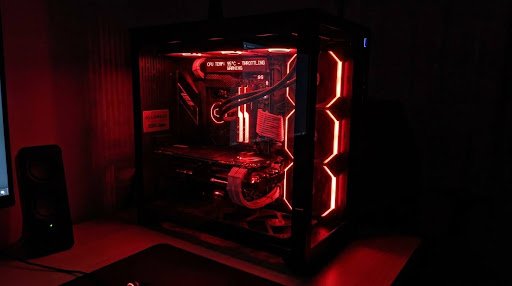
Every gamer has experienced it at some point. A rig that looked capable on paper, built with components that benchmarks praised and community forums recommended, delivering frame rates that feel stubbornly lower than they should. Stutters that appear in exactly the moments when the game matters most. A system that runs smoothly in one title and bafflingly poorly in another with no obvious explanation. The instinct is to blame the GPU or the CPU, and sometimes those components are genuinely the limiting factor. But a surprising number of gaming performance problems can be traced to hidden bottlenecks that most players never think to investigate.
Before you buy gaming GPU, it is worth understanding whether your graphics card is actually the part holding your system back. Storage speed, memory configuration, cooling, power delivery, and even software settings can quietly limit gaming performance, making expensive upgrades deliver far less improvement than expected. The hidden bottlenecks covered in this article are not rare edge cases. They appear regularly in real gaming PCs, and identifying them first can save money while unlocking the performance your existing hardware is already capable of delivering.
Slow RAM: The Bottleneck Nobody Talks About
System memory is the component category most consistently underestimated in its effect on gaming performance. RAM speed has a measurable and sometimes significant impact on frame rates in modern titles, particularly for AMD Ryzen platforms where the memory controller clock speed is directly coupled to the infinity fabric that connects CPU cores and cache. Running RAM below its rated speed on these platforms is a configuration choice that leaves real performance on the table.
The most common version of this bottleneck appears when DDR4 or DDR5 memory that is rated for a high speed profile is installed but the XMP or EXPO profile has never been enabled in the BIOS. Out of the box, most motherboards initialize memory at a conservative JEDEC baseline speed, often significantly below what the installed RAM is actually capable of. A simple BIOS setting change to enable the rated profile can produce frame rate improvements in CPU-sensitive games that rival a CPU upgrade, at zero additional cost.
Single-channel RAM configuration is the more severe version of the same problem. Running a single memory module instead of a matched pair cuts available memory bandwidth roughly in half, starving the CPU of the data throughput it needs to keep the GPU fed with draw calls and game world data. In GPU-limited scenarios the effect is modest. In CPU-limited scenarios it is significant and consistently measurable across a wide range of titles.
Storage Speed Affecting Load Times and Open-World Streaming
For most gaming scenarios, storage speed does not directly affect in-game frame rates once the level is loaded. The exception is open-world games that stream assets continuously from storage as the player moves through the environment. Titles with large seamless worlds including racing games, open-world RPGs, and modern shooters with large maps load texture and geometry data from storage in real time, and a storage subsystem that cannot keep pace with the streaming demand produces the characteristic pop-in, hitching, and micro-stutter that players often misattribute to GPU or CPU problems.
A mechanical hard drive as the primary game storage in a system built around a capable GPU and CPU creates exactly this mismatch. The GPU can render frames faster than the hard drive can supply the asset data those frames require, and the result is frame time inconsistency that average FPS numbers do not capture but that players feel clearly in the subjective smoothness of gameplay. Moving games to NVMe storage eliminates this specific bottleneck for the asset streaming scenario and dramatically improves load times for all titles regardless of whether they stream assets during play.
CPU Thermal Throttling Under Sustained Gaming Load
Many gaming PCs that perform well in short benchmark runs show performance degradation during extended play sessions because the CPU is thermally throttling. Modern processors implement boost frequency algorithms that elevate clock speeds when temperatures permit, and those same algorithms reduce clock speeds when temperatures approach the thermal design limit. A gaming session that runs a CPU for two hours at sustained high utilization will produce lower CPU frequencies at hour two than at hour one if the cooling solution cannot maintain temperatures within the boost-friendly range.
The symptoms of CPU thermal throttling during gaming are specific: performance that starts strong and gradually degrades over the course of a session, frame rate drops that worsen as the session continues, and systems that perform better in short bursts than in extended play. Monitoring CPU temperature and clock frequency during gameplay using free tools reveals this pattern clearly when throttling is the cause. The fix, improving CPU cooling through an aftermarket cooler or better case airflow, is usually less expensive than the GPU or CPU upgrades that players often assume are the solution.
PCIe Lane Configuration and Slot Electrical Speed
The slot a graphics card is installed in matters more than most players realize. Motherboards route PCIe lanes from the processor to the primary x16 slot, but secondary slots often run at x8 electrical speed or are connected through the chipset rather than directly to the processor. A GPU installed in a secondary slot for whatever reason, available space, clearance with other components, or simple mistake, may operate at reduced PCIe bandwidth that creates a measurable bottleneck in scenarios with high GPU-to-CPU data transfer requirements.
Similarly, some motherboards implement their primary x16 slot at x8 electrical speed when a second PCIe device is installed in another slot, with the remaining eight lanes redirected to the second device. Players who have added a PCIe NVMe drive or a capture card since their original build may have inadvertently halved their GPU’s PCIe bandwidth without realizing the slot configuration changed. Checking the motherboard documentation for PCIe lane sharing behavior and verifying the GPU is running at full electrical width in GPU-Z or similar monitoring software takes minutes and can reveal a bottleneck that appeared after a hardware addition.
Background Processes Consuming CPU and Memory Resources
This bottleneck category is not a hardware problem in itself but it interacts with hardware limitations in ways that make hardware constraints more severe than they would otherwise be. Background processes consuming CPU cycles and memory capacity reduce the headroom available to the game running in the foreground, pushing systems that would otherwise have adequate resources into constrained territory.
A system with 16GB of RAM running a memory-intensive game alongside a browser with many open tabs, a streaming client, a Discord voice chat, and various background update processes may find that the game has access to substantially less memory than the installed capacity would suggest. The operating system pages game data to storage when physical memory is fully committed, introducing storage latency into what should be a RAM-speed operation and producing stuttering that looks like a memory bandwidth problem but is actually a memory capacity problem created by resource competition.
Auditing background process resource consumption before a gaming session, particularly on systems where gaming performance has degraded over time without obvious hardware changes, frequently reveals software-layer causes that resolve performance problems without any hardware investment.
The Display Itself as a Hidden Bottleneck
A GPU producing frames faster than the display can show them is a common configuration, and one that generates a specific set of problems that feel like hardware performance issues but are actually display synchronization issues. Screen tearing occurs when the display updates mid-frame, showing content from two different frames simultaneously, because the GPU and display are not synchronized. Adaptive sync technologies including G-Sync and FreeSync address this by synchronizing the display refresh rate to the GPU frame output, but only within a specific frame rate range that varies by monitor and implementation.
A player running a frame rate that falls outside the adaptive sync range of their monitor, either too high or too low, loses the synchronization benefit and experiences either tearing above the range or judder below it. Understanding the operating range of the display and using frame rate limiters to keep output within the adaptive sync window is a configuration adjustment that costs nothing and resolves display-related performance artifacts that might otherwise be investigated as GPU or driver problems.
The bottlenecks that hurt gaming performance most are not always the ones that are most visible in hardware specifications. Finding them requires monitoring, testing, and a systematic approach to understanding what the system is actually doing during gameplay rather than what it is theoretically capable of. The performance that gaming hardware is paid to deliver is available in most systems. It just requires knowing where to look when something is quietly taking it away.
Final Thoughts
Gaming performance is only as strong as the weakest link in your system. While upgrading a GPU or CPU can certainly improve frame rates, hidden bottlenecks such as slow or improperly configured RAM, thermal throttling, storage limitations, PCIe lane restrictions, excessive background processes, and even display settings can quietly undermine the hardware you already own. Taking the time to identify and eliminate these issues often delivers noticeable improvements without the cost of major upgrades. Before investing in new components, evaluate your system as a whole. A methodical approach to diagnosing performance problems ensures that every part of your gaming PC works together efficiently, helping you achieve smoother gameplay, more consistent frame rates, and better value from every piece of hardware you’ve purchased.
