

High ping in PC gaming turns every online match into a nightmare — delayed shots in Valorant, rubber-banding in Fortnite, or teleporting enemies in Apex Legends. In 2026, with faster internet plans and advanced routers, most players can drop their ping from 100+ ms to under 30 ms with the right fixes. High ping usually stems from network instability, poor routing, Wi-Fi interference, or PC-side bottlenecks rather than just your ISP speed.
This guide walks you through proven, step-by-step solutions based on the latest 2026 tweaks. Start from the top for the biggest wins, and you’ll see stable, low-latency gameplay in no time.
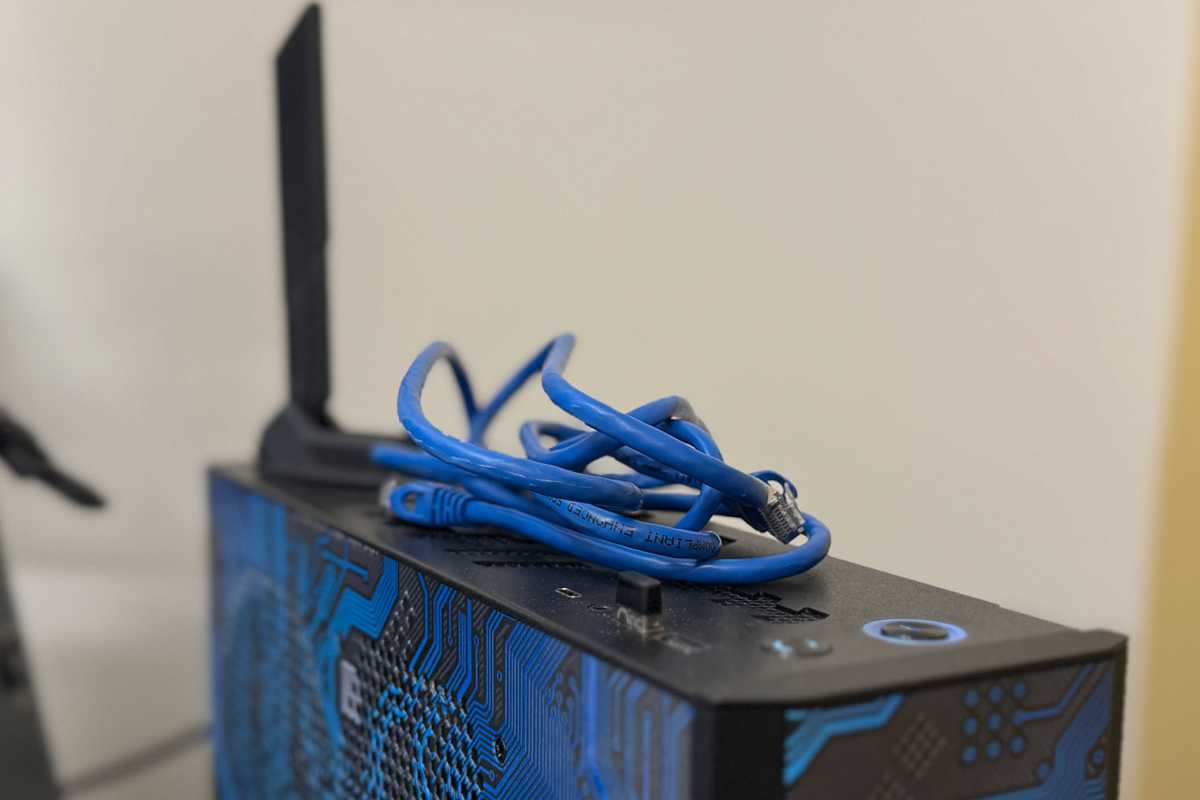
1. Switch to a Wired Ethernet Connection (Biggest Impact)
Wi-Fi adds 10–50 ms of latency due to interference, signal bounces, and retries. Ethernet is rock-solid.
- Plug a Cat6 or Cat7 cable directly from your router to your PC’s Ethernet port.
- Avoid powerline adapters or long runs — keep it short and direct.
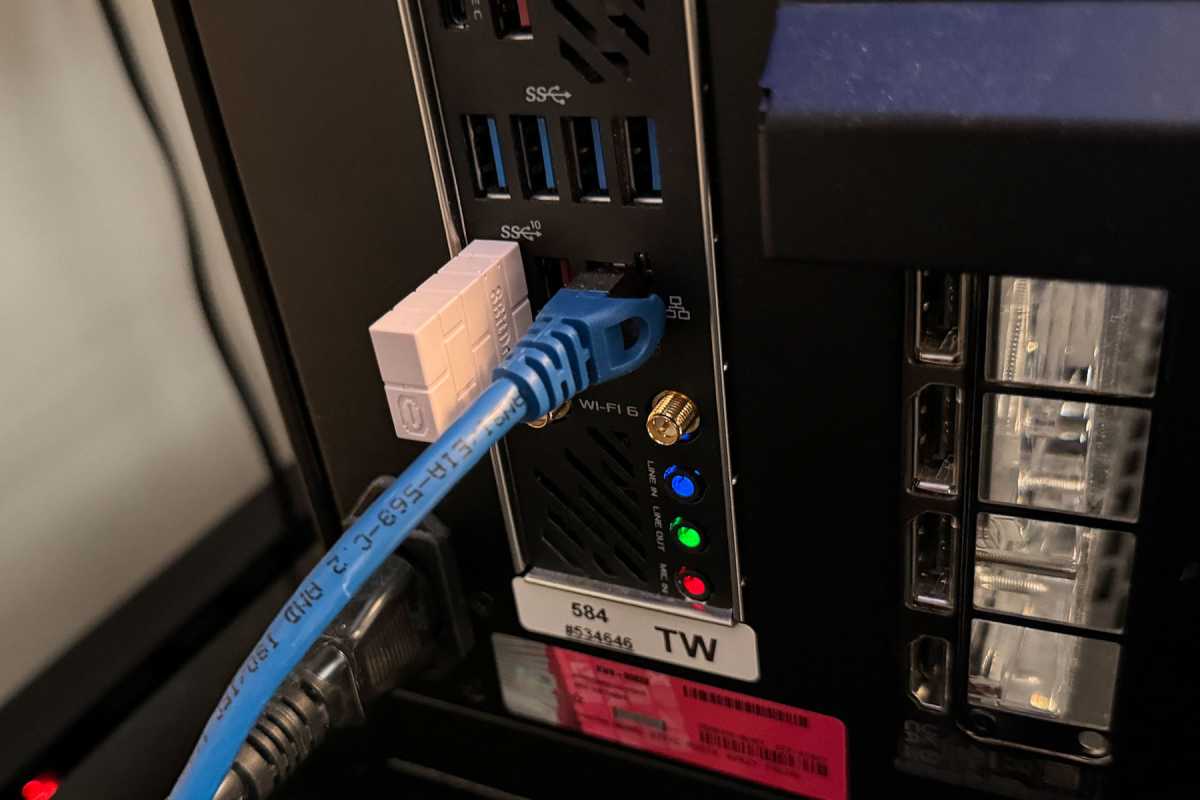

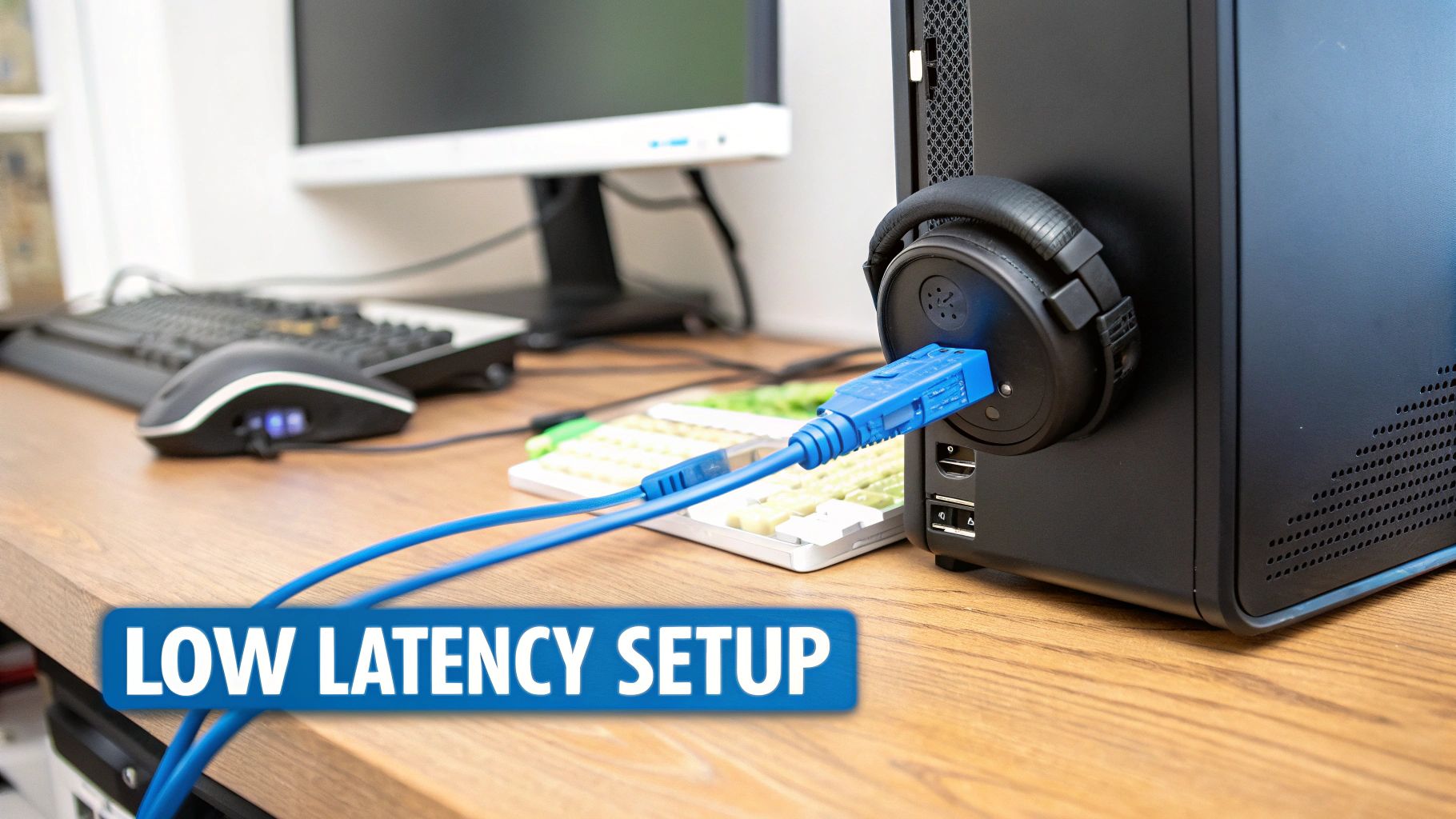
This simple swap often halves ping instantly. If you’re stuck on Wi-Fi, use 5 GHz band, position closer to router, and disable 2.4 GHz devices.
2. Run Speed Tests & Diagnose Your Baseline
Before tweaks, know your numbers.
- Use sites like speedtest.net, fast.com, or Cloudflare’s tool.
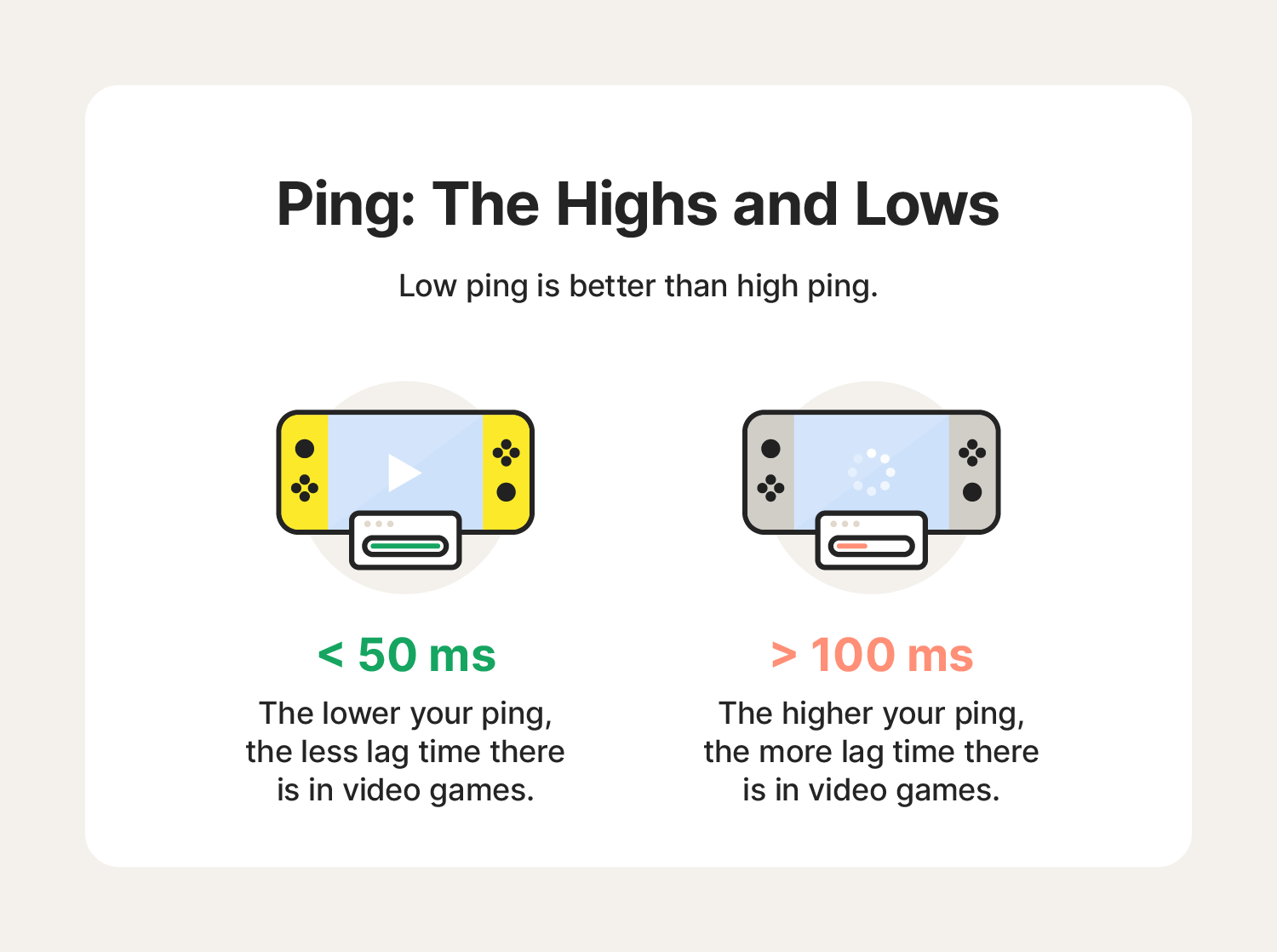
- Aim for: Ping <30 ms to game servers, jitter <5 ms, no packet loss.

Test multiple times, off-peak, and ping your router (cmd: ping 192.168.1.1) — should be <2 ms. High local ping points to PC or cable issues.
3. Optimize Windows Network Adapter Settings (2026 Tweaks)
Modern Windows has power-saving features that spike ping.
- Right-click Start → Device Manager → Network adapters → Your Ethernet adapter → Properties.
- Power Management tab: Uncheck “Allow the computer to turn off this device to save power.”
- Advanced tab (common winners):
- Interrupt Moderation → Disabled
- Flow Control → Disabled
- Large Send Offload (IPv4/IPv6) → Disabled
- Receive/Transmit Buffers → Maximum
- Energy Efficient Ethernet → Disabled
- Speed & Duplex → Auto or highest (e.g., 1 Gbps Full Duplex)
Flush DNS and reset TCP/IP for good measure (Admin CMD):
- netsh winsock reset
- netsh int ip reset
- ipconfig /flushdns
These prevent spikes from background throttling.
4. Change DNS to Faster Servers
ISP DNS can add 10–30 ms.
Switch to Cloudflare (fastest in 2026):
- Settings → Network & Internet → Change adapter options → Right-click Ethernet → Properties → IPv4 → Use the following DNS:
- Preferred: 1.1.1.1
- Alternate: 1.0.0.1
Flush cache after (ipconfig /flushdns). Many report 10–20 ms drops in competitive games.
5. Enable QoS on Your Router & Prioritize Gaming
QoS (Quality of Service) stops downloads or streaming from ruining your ping.
- Log into router (usually 192.168.1.1).
- Find QoS/Adaptive QoS section.
- Prioritize your gaming PC by MAC/IP or enable “Gaming” mode.
- Set bandwidth limits for other devices if sharing.


Gaming routers (Asus ROG, Netgear Nighthawk) excel here with auto-prioritization.
6. Close Bandwidth Hogs & Background Processes
Updates, torrents, Discord streams, or Windows updates spike ping.
- Task Manager → Processes: End non-essential (OneDrive sync, antivirus scans).
- Disable auto-updates during play (Windows Update → Pause).
- Disconnect smart devices/TVs using bandwidth.
7. Use a Gaming VPN or Booster (If Routing Sucks)
If your ISP routes poorly to game servers, tools like ExitLag, GearUP Booster, or premium VPNs (NordVPN with gaming servers) reroute for better paths.
They add 5–10 ms overhead but can shave 30–50 ms on bad routes. Avoid free VPNs — they worsen ping.
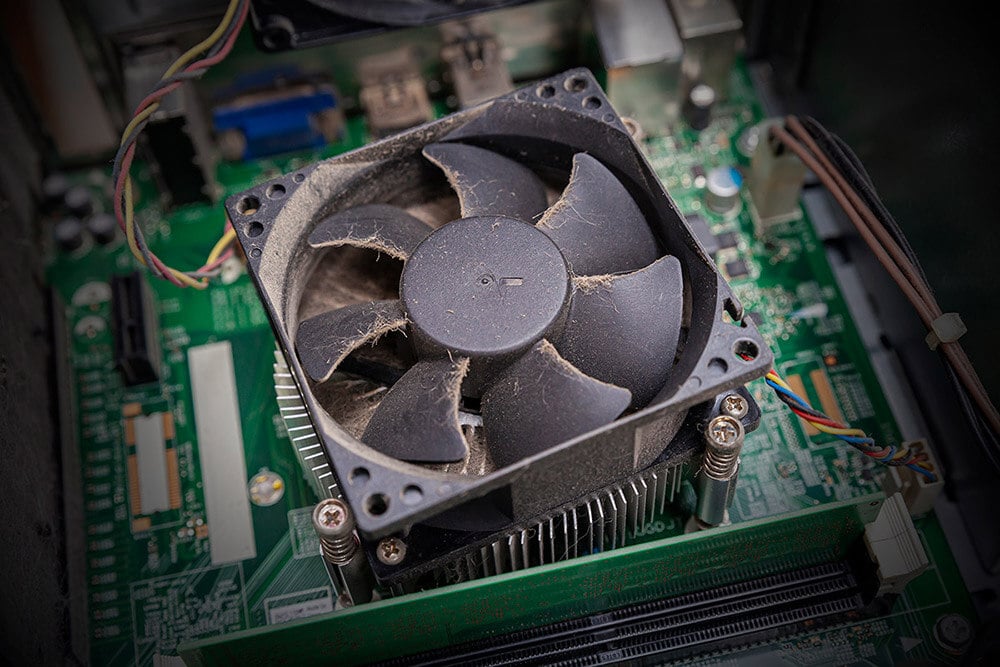
8. Check for Overheating & Hardware Issues
Throttling from heat affects network stability indirectly.
- Clean dust from fans/heatsinks.
- Monitor temps with HWMonitor or MSI Afterburner.

Update network drivers from motherboard manufacturer (not Windows Update).
9. Advanced: Choose Closest Servers & Off-Peak Play
Always select the nearest region in-game. Play during low-traffic hours.
If nothing works, contact ISP for line checks or upgrade to fiber if available.
Real Results & Expectations
After these fixes: Ping 10–30 ms stable, minimal spikes, smoother headshots. Many 2026 players hit sub-20 ms consistently.
For GPU-side performance (pair low ping with high FPS), check our NVIDIA DLSS 5 guide. Or for mobile alternatives when away from PC, see how to reduce lag in online games mobile.
FAQs About Fixing High Ping in Gaming PC
What ping is good for gaming in 2026?
Under 50 ms is playable; under 30 ms feels crisp; sub-20 ms is pro-level.
Does Ethernet really lower ping that much?
Yes, often 20–60 ms drop vs Wi-Fi. It’s the #1 fix for most.
Why is my ping high only in games?
Games are sensitive to jitter/packet loss. Background traffic or Wi-Fi instability hits harder than browsing.
How do I know if it’s my PC or ISP?
Ping your router (<2 ms good). If high to router, check cable/PC. If low locally but high to servers, it’s routing/ISP.
Can overheating cause high ping?
Indirectly thermal throttling slows everything, including network processing.
High ping doesn’t have to ruin your sessions. Apply these steps, test in-game, and dominate. Smooth, responsive gameplay is just tweaks away. Good luck out there!
